
How to build and launch your PUSH app
What is PUSH?
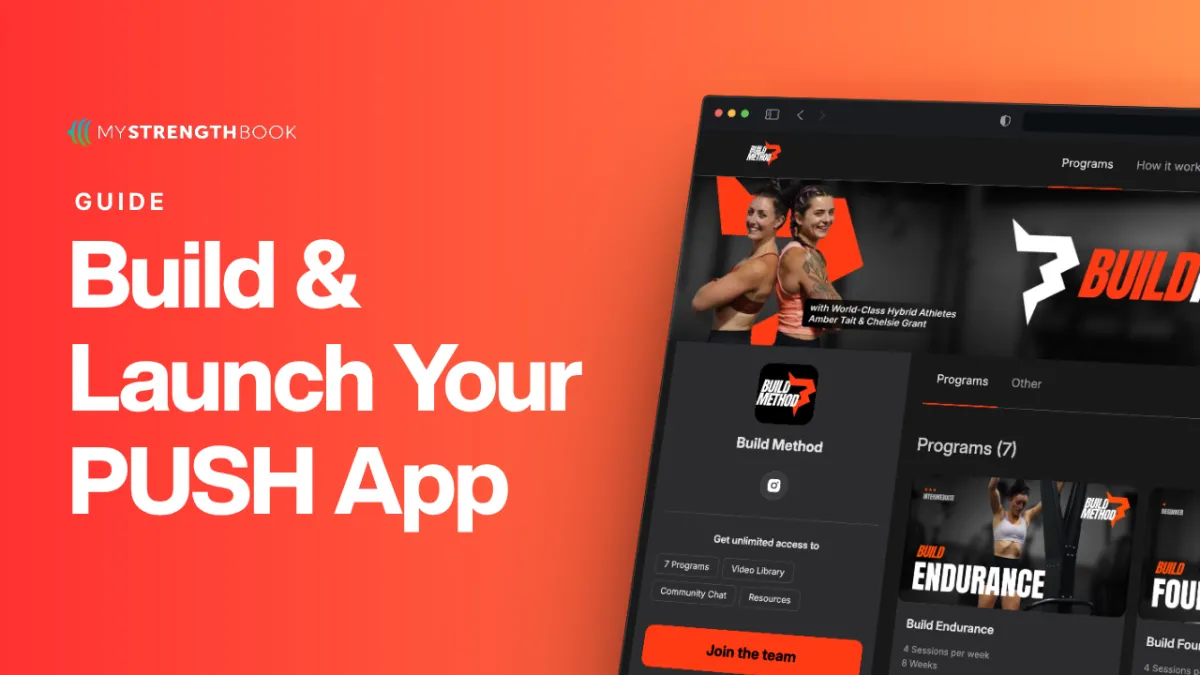
PUSH is the side of our platform that allows you to generate passive income by selling subscription access to your training programs.
With PUSH you’ll be able to:
✅ Get your own custom online store
✅ Get your own custom app for your clients
✅ Get your own app icon on the app store or google play
✅ Sell UNLIMITED training programs as a monthly subscription
✅ Receive direct payments to your bank with Stripe
✅ Run challenges
✅ Provide education
✅ Build a community
✅ Get 24/7 tech support while you focus on what you do best
And more!
Pricing
Our pricing model is simple!
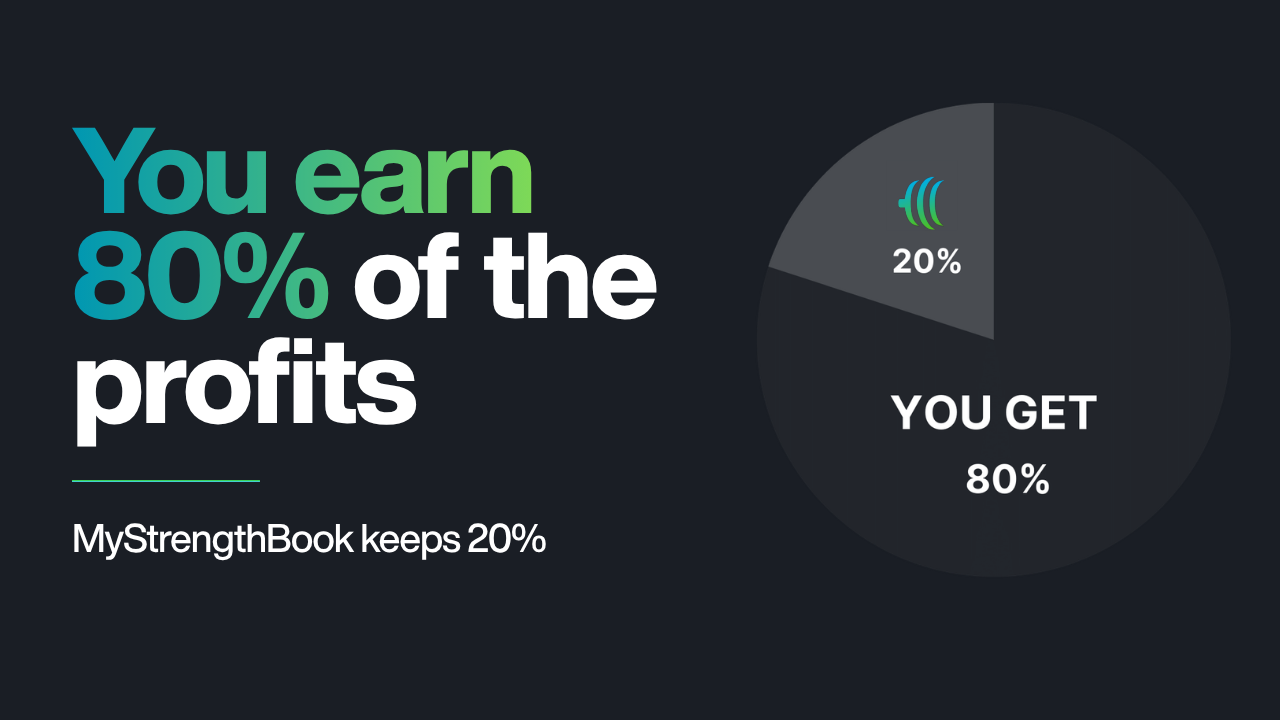
PUSH operates under a revenue share model where you earn 80% of the profits and MyStrengthBook keeps 20%
💡Best of all, you can get started right away with no upfront cost!
Launch in 3 steps
STEP #1 Account Activation
When you decide you are ready to start growing your business with PUSH, you will receive a welcome email from our onboarding team.
📩 The welcome email will ask you to:
1️⃣ Provide a WhatsApp number for faster communication with our team
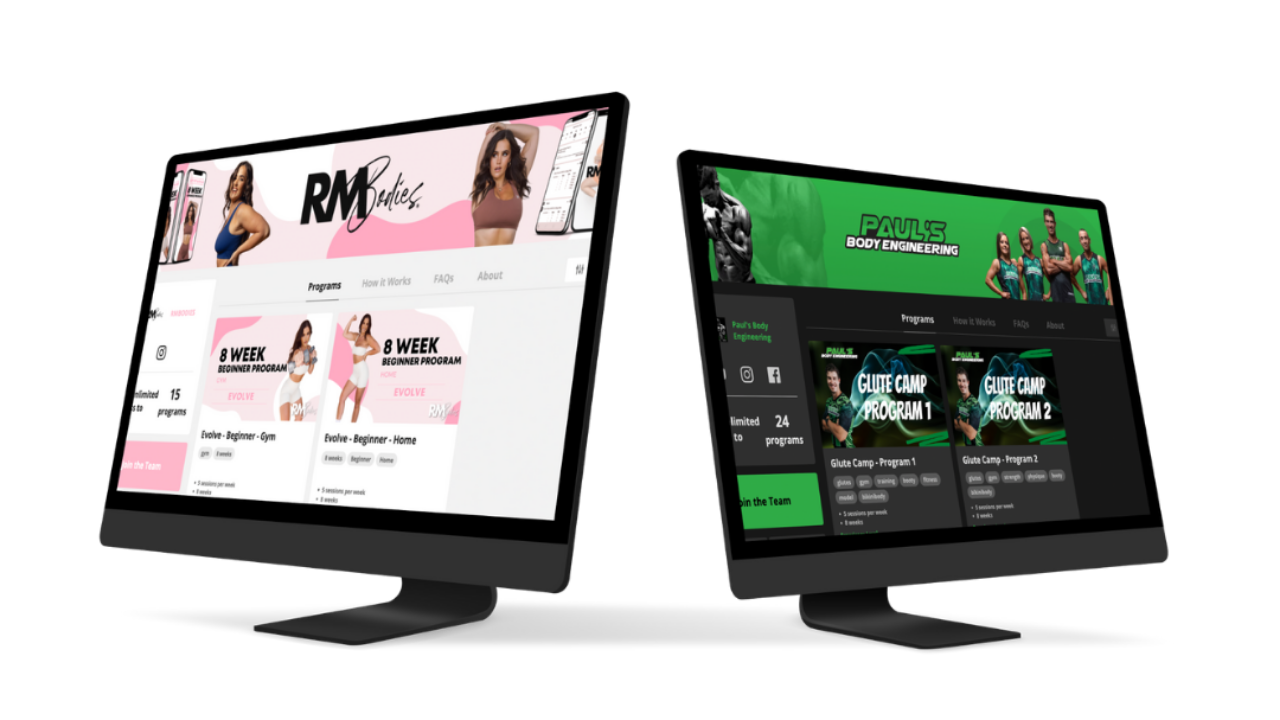
2️⃣ Include images, branding style guide, and logos in a shared google drive folder. ( Remember that everything on the app and storefront will reflect your branding!) Here’s an example:
3️⃣ Create a coach account at: https://app.mystrengthbook.com/signup-coach
4️⃣ Tell us how much you want to charge for your monthly subscription and in what currency
💡Remember that you get to decide your prices depending on your market. The average price for a monthly subscription is $29.99 USD
5️⃣ Tell us how much you want to charge for your annual subscription
💡Your clients will get to choose whether they want to pay monthly or yearly
6️⃣ Give us the email address you used to create your coach account
7️⃣ Tell us what you want your URL name to be. ( https://_____________.programs.app)
💡The URL is the web address that your clients will use to find your online store. Choose a name that relates to your business or personal brand.
Once we get this information from you, your PUSH account will get activated and our design team will get to work 🎨
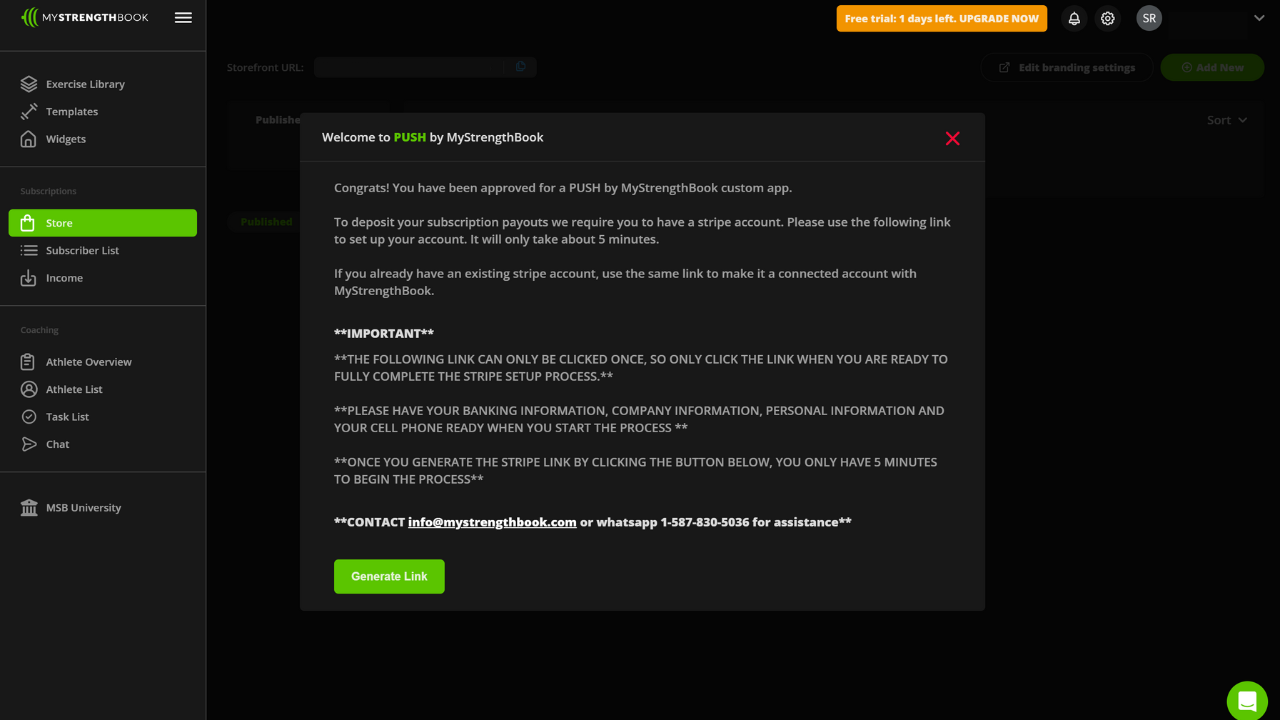
🔔 When your PUSH account gets activated, you will receive a notification saying that PUSH has been activated on your account and that the next time you log in you will be prompted to set up/connect your stripe account.
STEP #2 Set up Stripe
2 or 3 days after you provide us with your account email, desired URL, and pricing, you’ll receive the following email:
📩 Hey Coach!
PUSH has been activated on your account!
The next time you log in you will be prompted to set up/connect your stripe account.
Follow the instructions in the prompt.
Let us know if you have any questions.
Team MystrengthBook
Simply follow the instruction on the prompt.
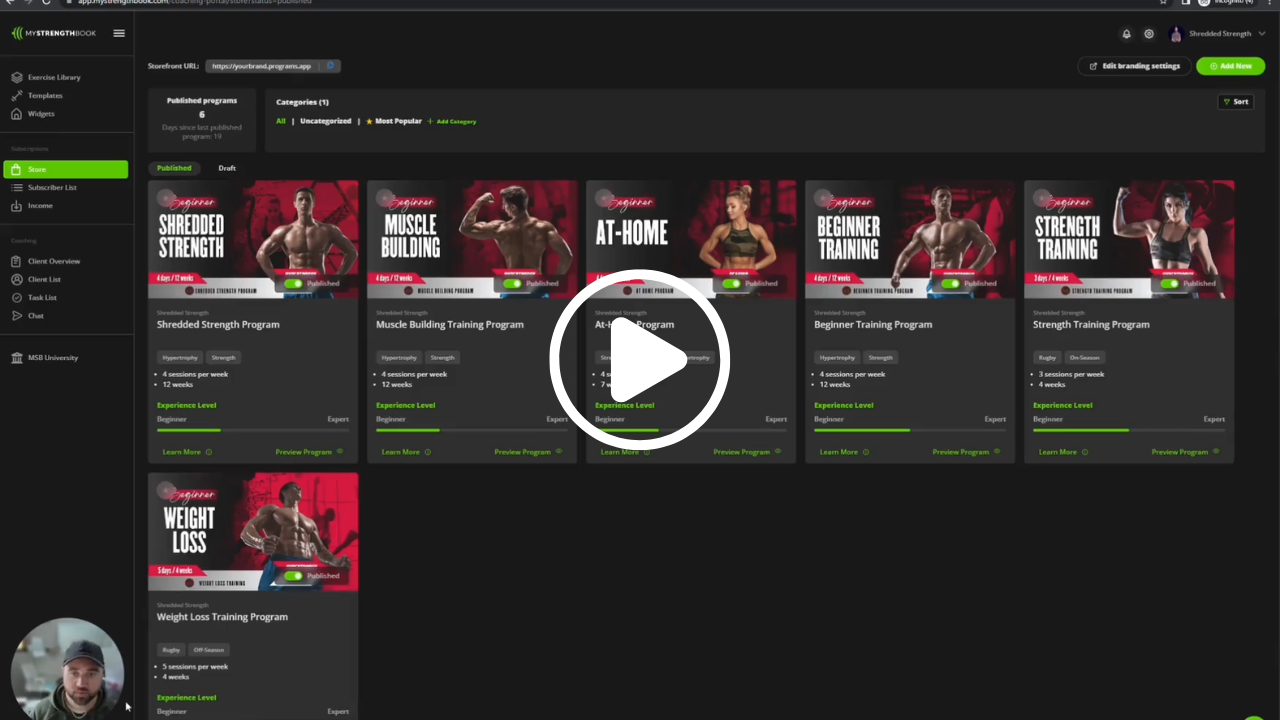
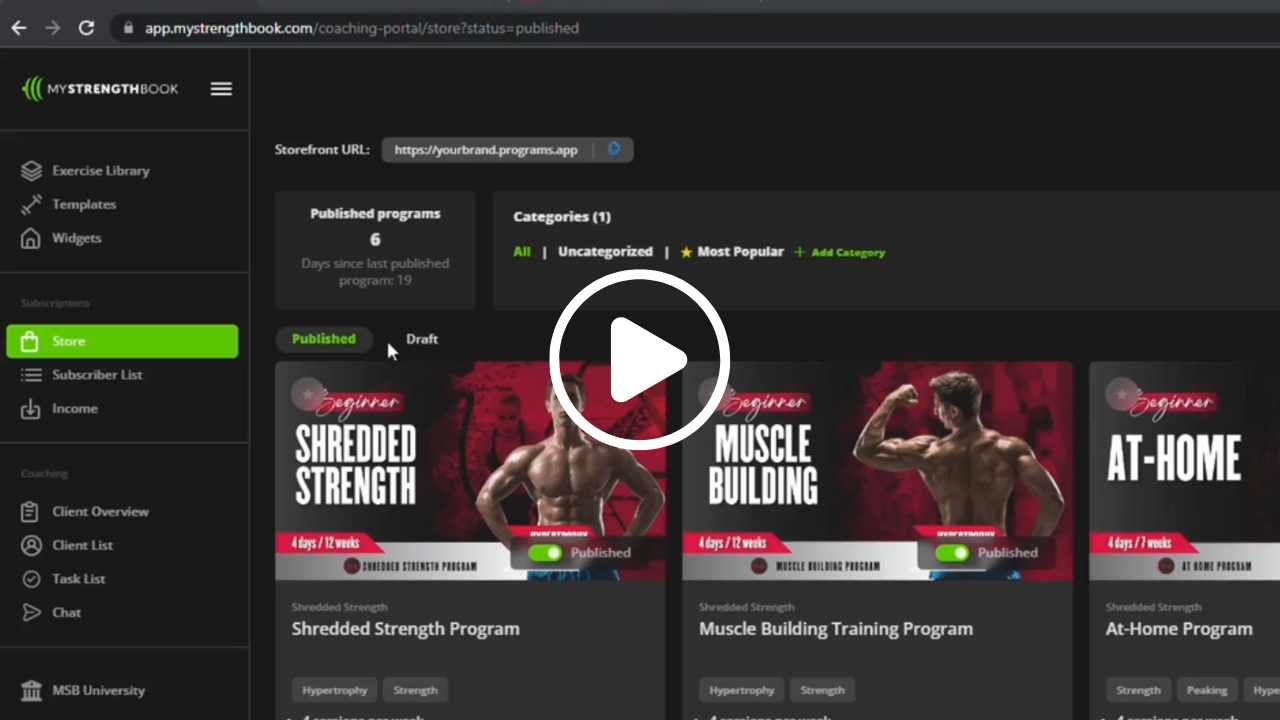
STEP #3 Build your Programs & Launch
Watch the video below:
Build a community inside your app
Getting Started with Community Chat
Build stronger connections with your app subscribers and create an engaging environment where clients feel motivated and supported. The Community Chat feature helps you streamline communication, foster accountability, and inspire your clients—all within your app.
Why Community Chat?
❤️ Strengthen Engagement: Create a space where your clients connect, share progress, and support one another.
🤝 Foster Accountability: Daily conversations and challenges encourage clients to stay consistent in their fitness journeys.
💬 Simplify Communication: Consolidate all interactions, updates, and shared files in one convenient place.
How to Activate Community Chat
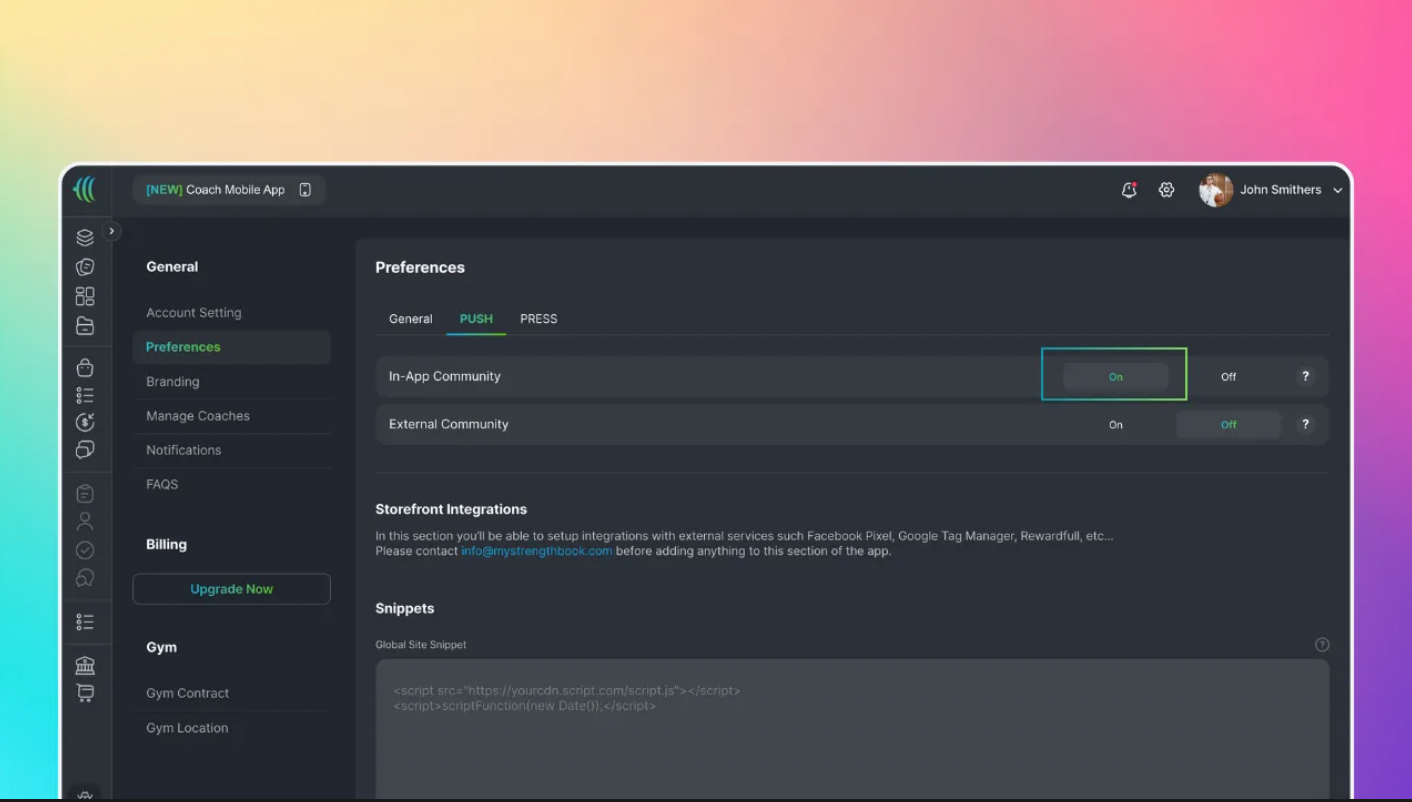
Go to Settings in your main dashboard.
Under Preferences select the PUSH tab.
Toggle In-App Community to “ON”
What Are Channels?
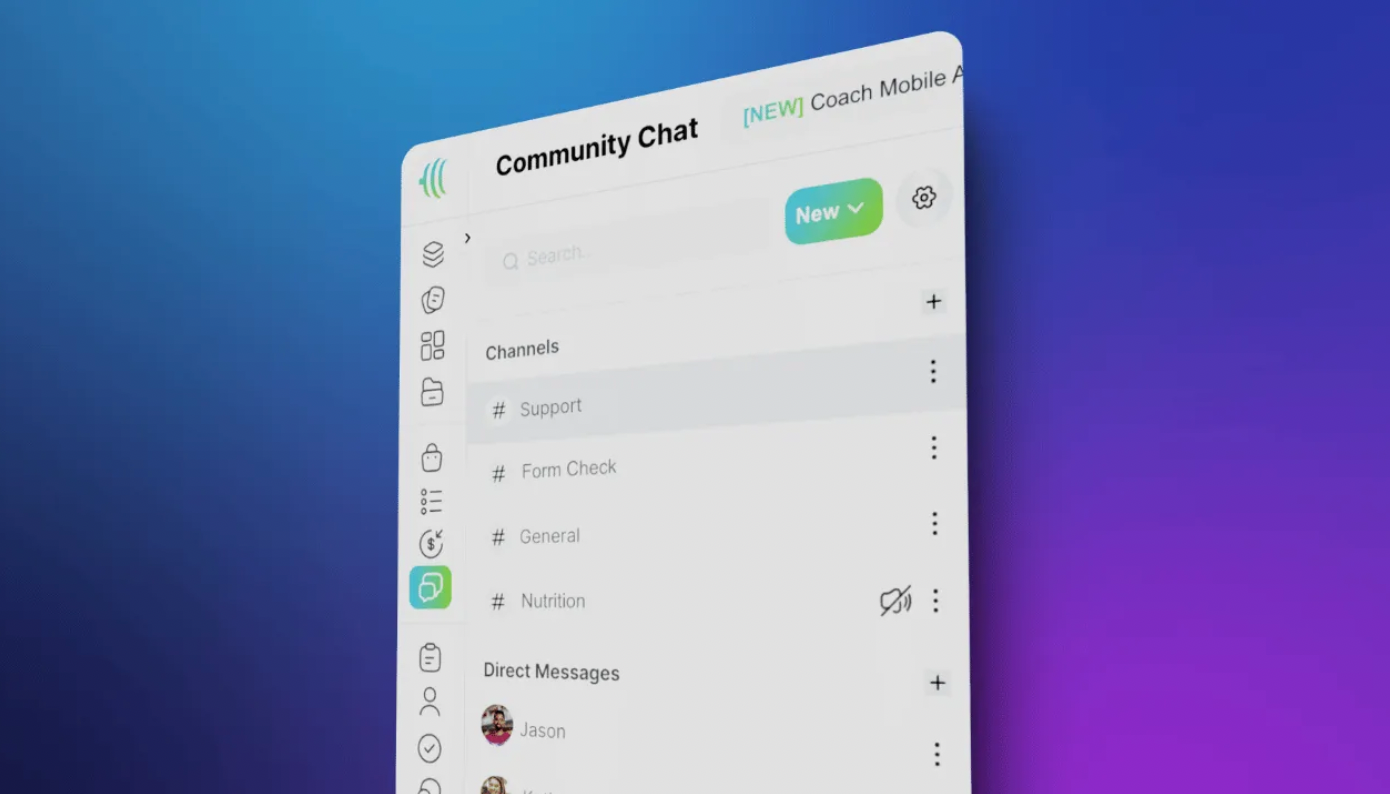
Channels are topic-specific group chats that keep conversations organized and relevant. Coaches can create multiple channels based on their clients’ needs.
Example Use Cases:
#️⃣ Progress Updates: A channel dedicated to sharing progress photos and feedback.
#️⃣ Form Checks: Help clients improve by reviewing their training videos.
#️⃣ Challenges: Host fitness challenges and keep track of participants' progress.
#️⃣ Announcements: Share important updates, new programs, or events.
How to Create a Channel
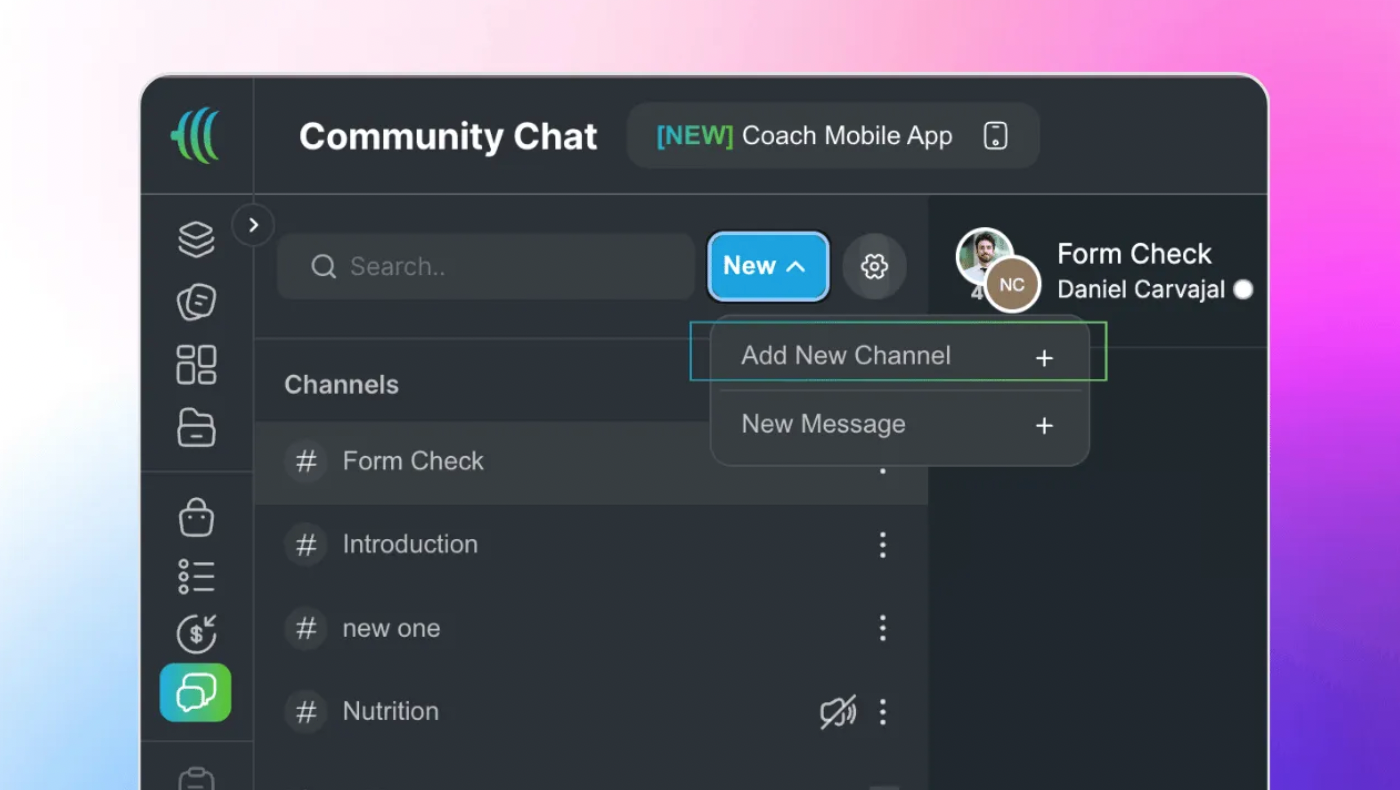
Navigate to Community Chat in your dashboard
Tap +New and then select Add New Channel
Name your channel and customize its purpose.
Community Chat Features
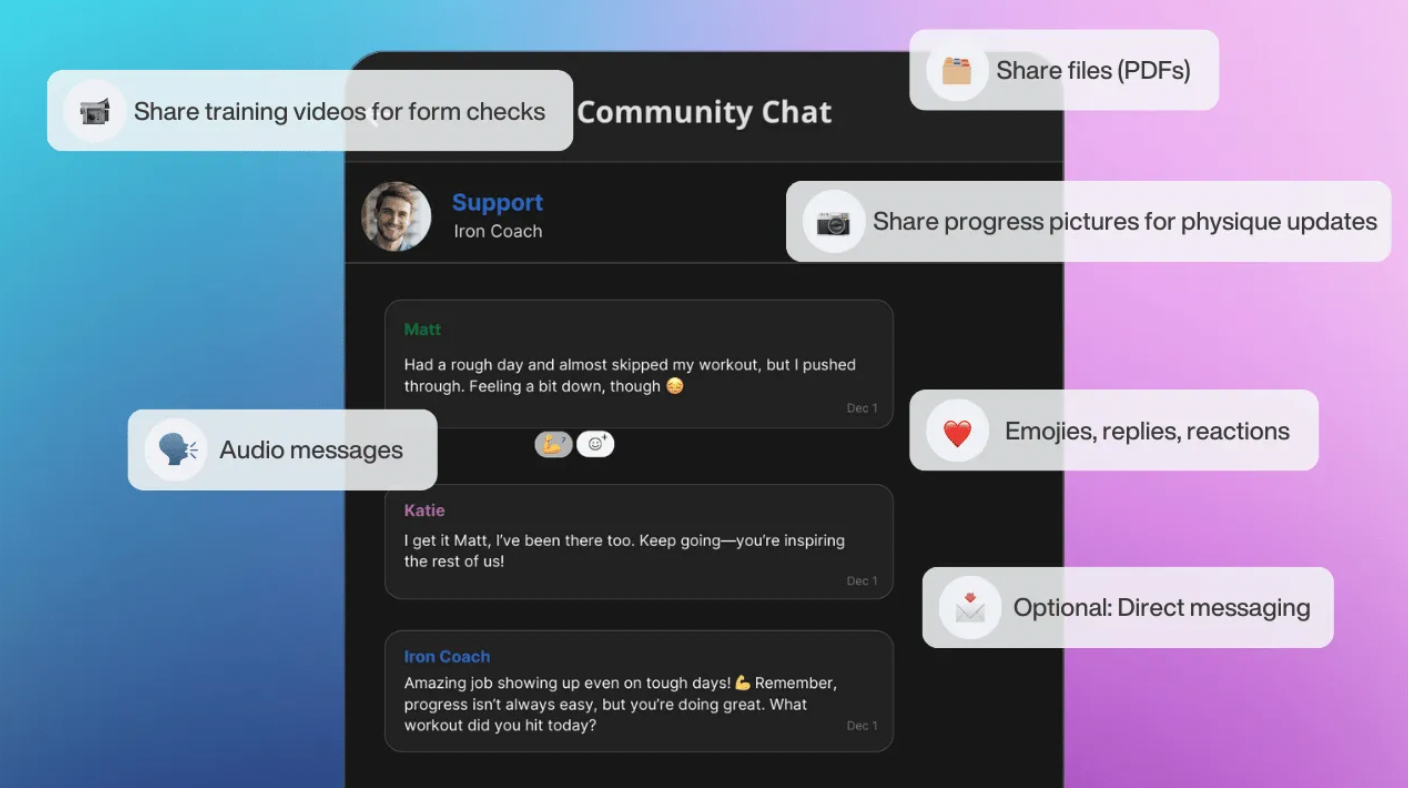
📸 Media Sharing: Share training videos, progress photos, and files (e.g., PDFs).
🗣 Audio Messages: Record and share audio updates or feedback.
❤️ Reactions & Replies: Use emojis and threaded replies to engage in conversations.
🔔 Push Notifications: Ensure clients never miss important updates.
Admin Access
As the coach (admin), you have full control over the channels:
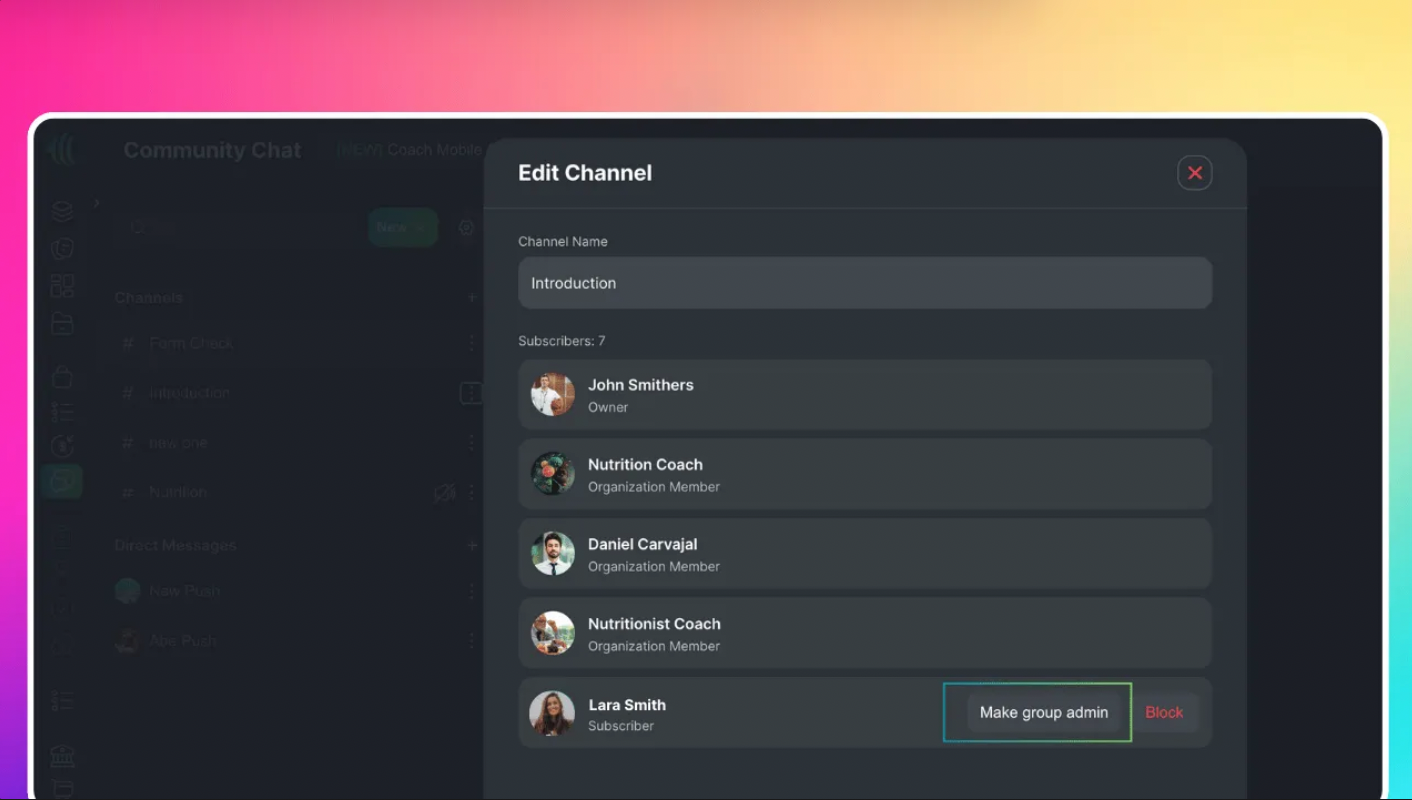
Assign other admins for better management.
Go to the channel, tap 3 dots, select Edit Channel, and Make Group Admin
List
Guest Access
All new subscribers will automatically gain access to existing channels.
Coaches can block or unblock members.
Navigate to the channel, click 3 dots, choose Edit Channel, find the member, and select Block.
Muting Push Notifications
Clients or coaches can mute notifications for specific channels:
Go to the channel.
Tap the 3 dots.
Select 🔕 Mute Channel
Optional: Direct Messaging
Direct messaging is available for one-on-one communication between coaches and subscribers
Optimize your App
App Branding
Watch the video below:
Storefront Branding
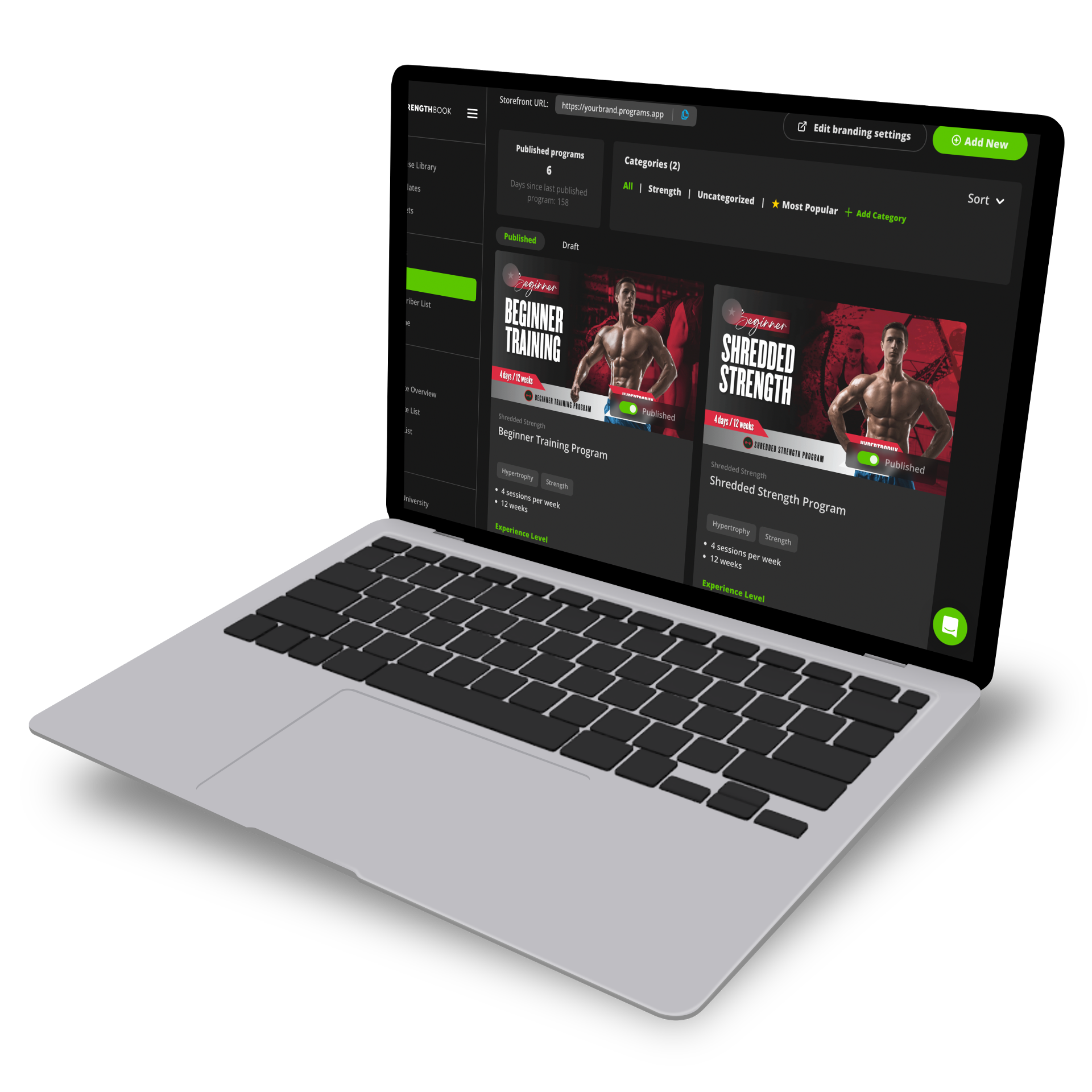
At MyStrengthBook, we believe that your app should reflect your brand and style.
While our design team handles your custom storefront banner, logo and colors, you can always access the editor to make any changes you like at any time.
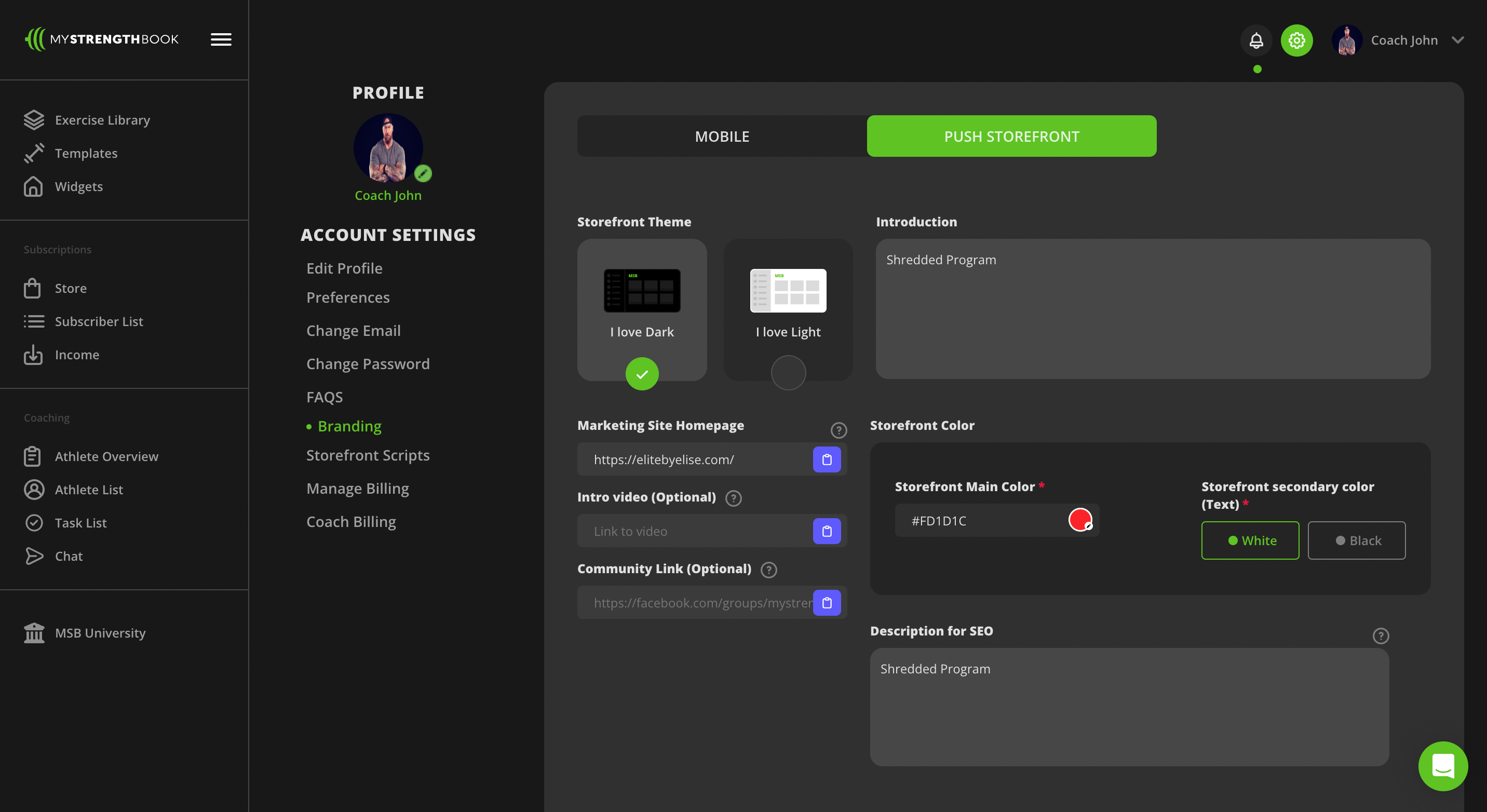
Simply go to:
Account settings
Branding
In the branding section you'll be able to:
✅ Choose between a light or dark theme
✅ Write an Introduction
✅ Link your main website
✅ Link an intro video
✅ Link to your private community
✅ Apply your main and secondary colors to the buttons
✅ Link to your social media platforms
✅ Upload Banner, logo, mockups and favicon.
Widgets
Widgets are custom features you can add to your app to create more value for your users. Explore the options available below to begin building out custom features in your app.
💡All Widgets are included in your app and you can choose to install them or remove them to suit your needs
Community
As a Fitness coach, you need to have a solid grip on the needs and struggles that your clients face. By creating a private Facebook or Discord group, you can do just that.
This intimate community allows you to hold your clients accountable, offer advice, and motivate them.
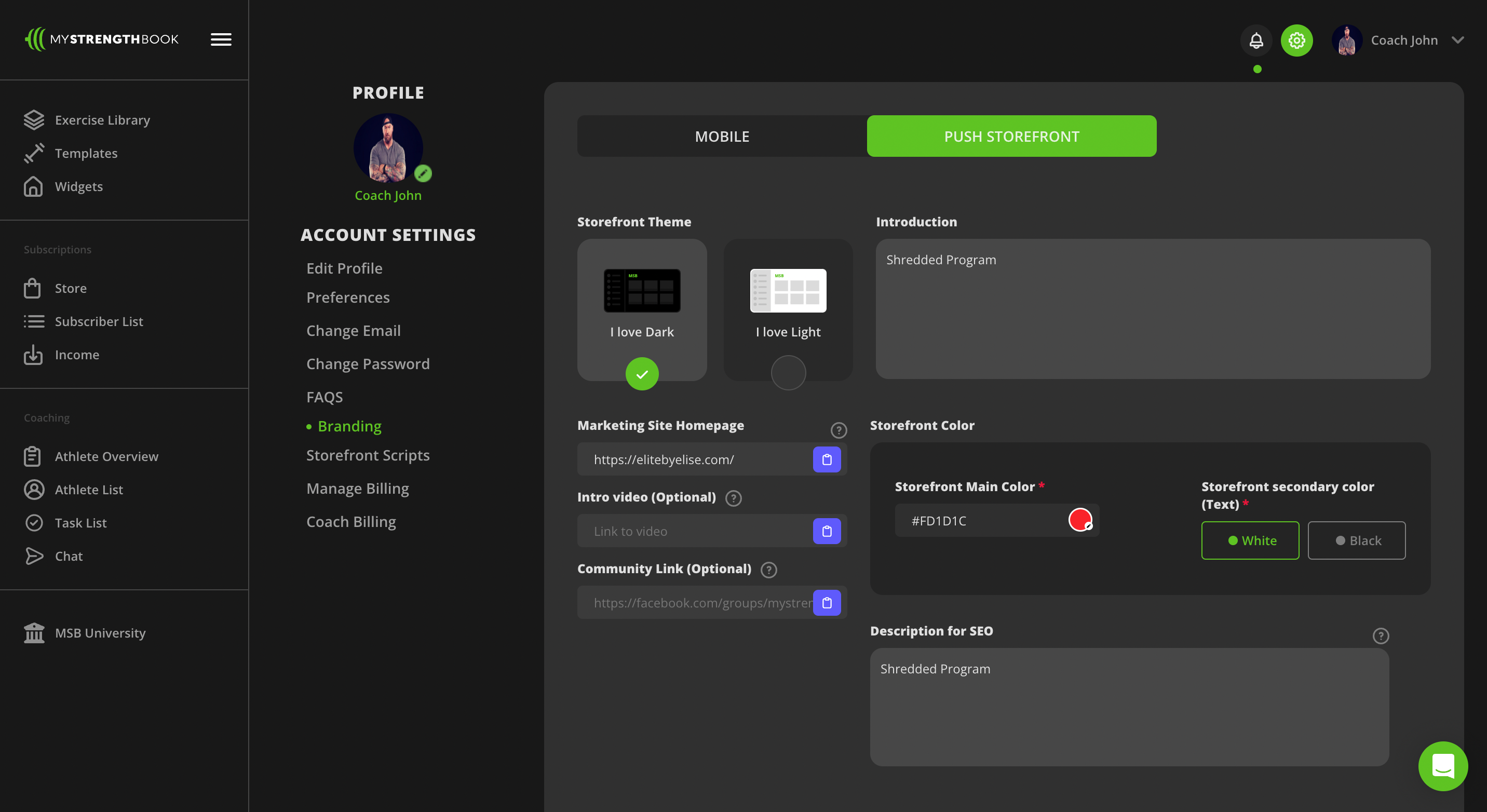
Go to branding settings > PUSH Storefront
You’ll find the option to add a link to your private community
App Icon or App store listing
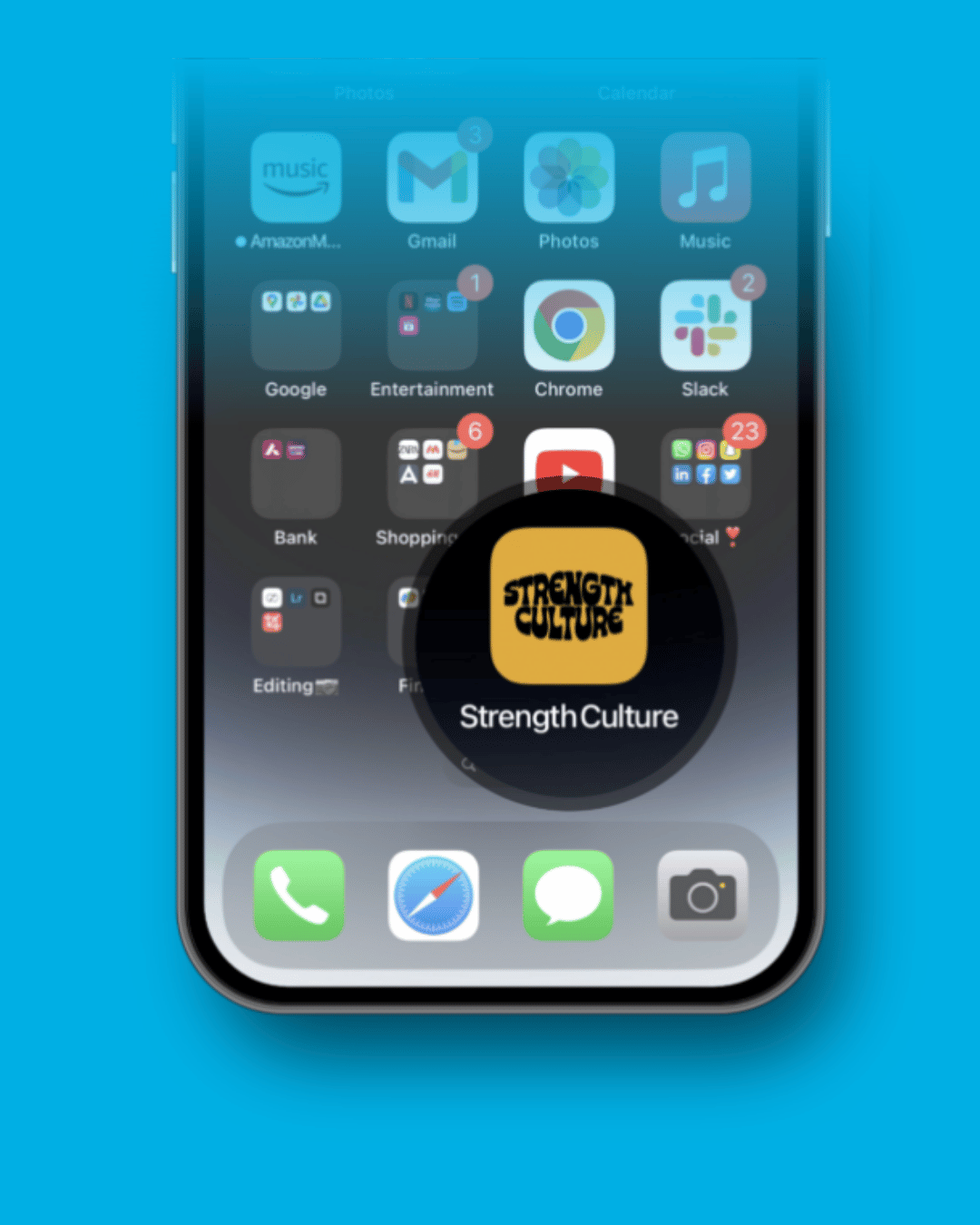
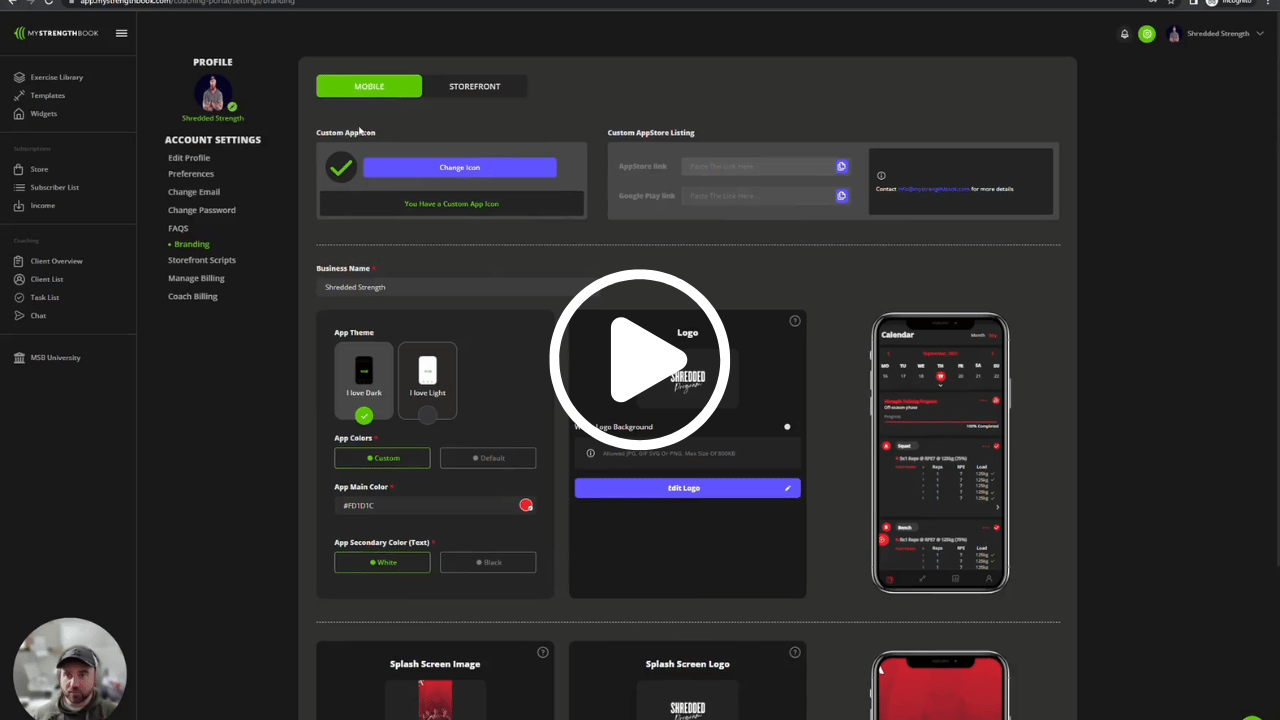
App Icon
Here are the requirements to have a custom app icon:
✅ Upgraded account
✅ At least 10 users on your app
You can request your custom app icon by tapping on the “Change icon” button (Watch the video to learn how)
Appstore listing
Here are the requirements to have an app store listing:
✅ Upgraded account
✅ At least 25 users on your app
💡 If you don’t have 25 users on your app and still want an app store listing, you can pay a one-time fee of $100 USD to MyStrengthBook
*Then you will have to pay $100USD/year to Apple
How to create a coupon code
Want to attract more clients and increase your program sales? Now, you can create custom coupon codes inside your coaching app!
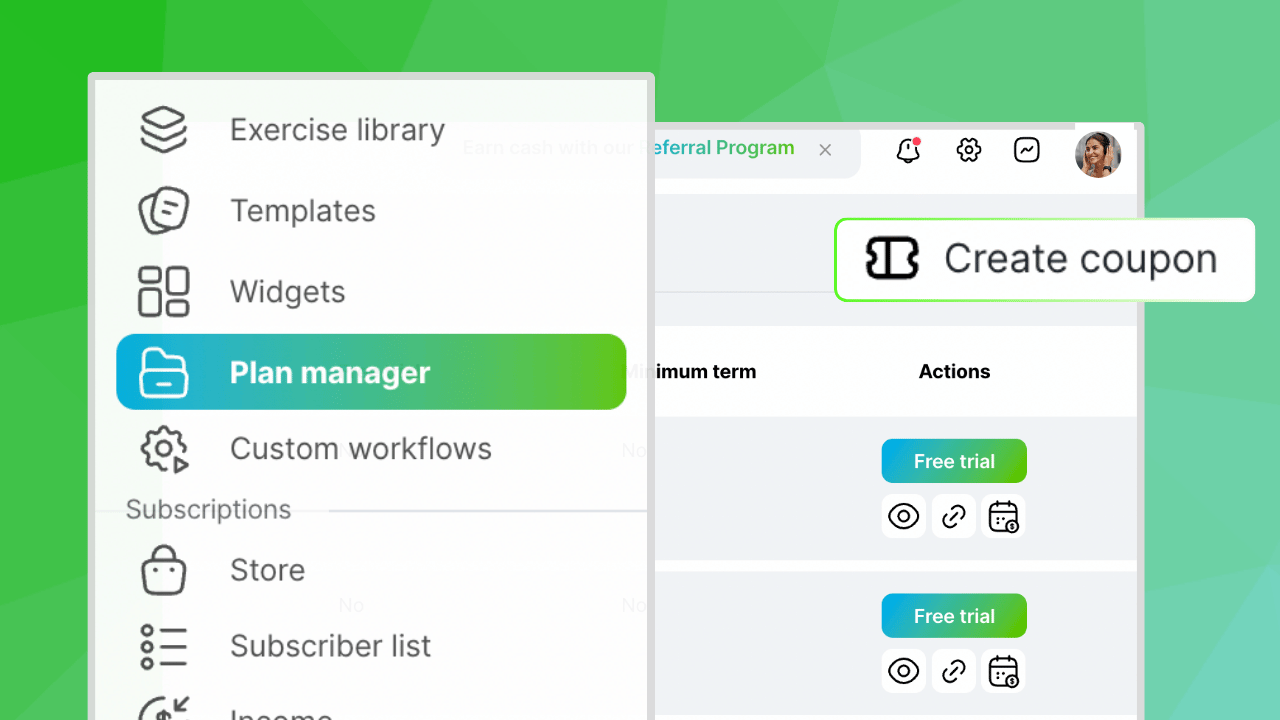
Go to “Plan Manager” and tap “Create Coupon”
Next Steps
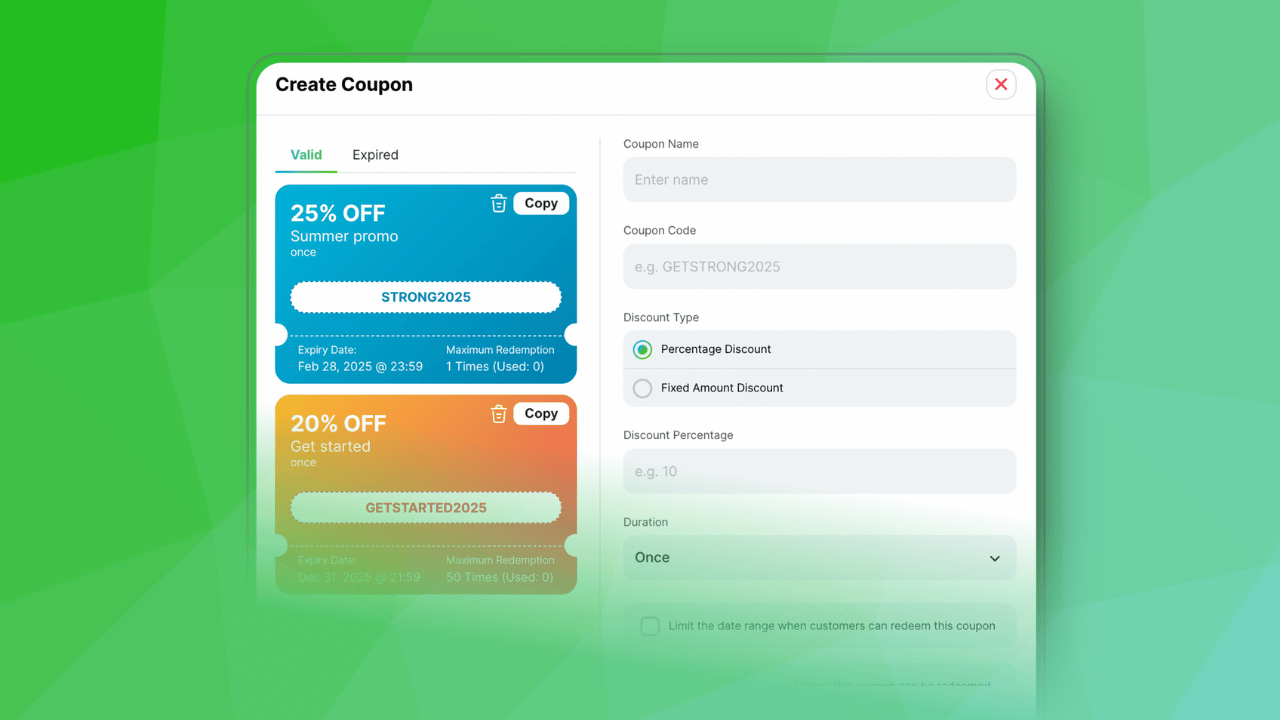
Name your coupon: This is the name that appears on the receipt that could be provided to your customer if you have that setting turned on
Coupon code: This is the code you will be sharing with your customers and it is case-sensitive. Make sure it's at least 5 digits long. You can also use numbers.
Choose a discount type: You can either do a Percentage discount or a fixed amount discount. Keep in mind that "Percentage discount" also applies to the annual subscription; so if you have a pre-built percentage off on the annual subscription, it will add to that as well. Sometimes is best if you want to do a 50% discount but only apply it to the monthly membership or subscription price, then, you just need to calculate what that value is and do a "Fixed amount discount"
Example: Just to give an example, a common promotion is: $1 for the first month and then going up to full price in the second month.
Something you can do here is to calculate how much the fixed amount would be.
Let's use the example of $30.
If you want to offer a coupon of $1 for the first month, then the discount you would create would be $29 and that would be applied only on the first month
Set the duration: By default, Stripe sets this "forever", which means the discount would apply to that user forever. So, if you add a 50% discount, they would get that month over month. This would work if you wanted to issue a lifetime discount. If that is not the case you have to switch it to Once or Multiple months
Redemption limits (Control how many times it can be used): It's always important to set a date range limit and a redemption limit, just in case the coupon code leaks.
For example, if you create a coupon code and don't want it to be used after a certain period of time you can put an expiry date on it
Create: When you click “Create” you will see the name of the coupon and all the details on the left side column of the screen. Click “Copy” and share the code with your audience!
Test before sharing
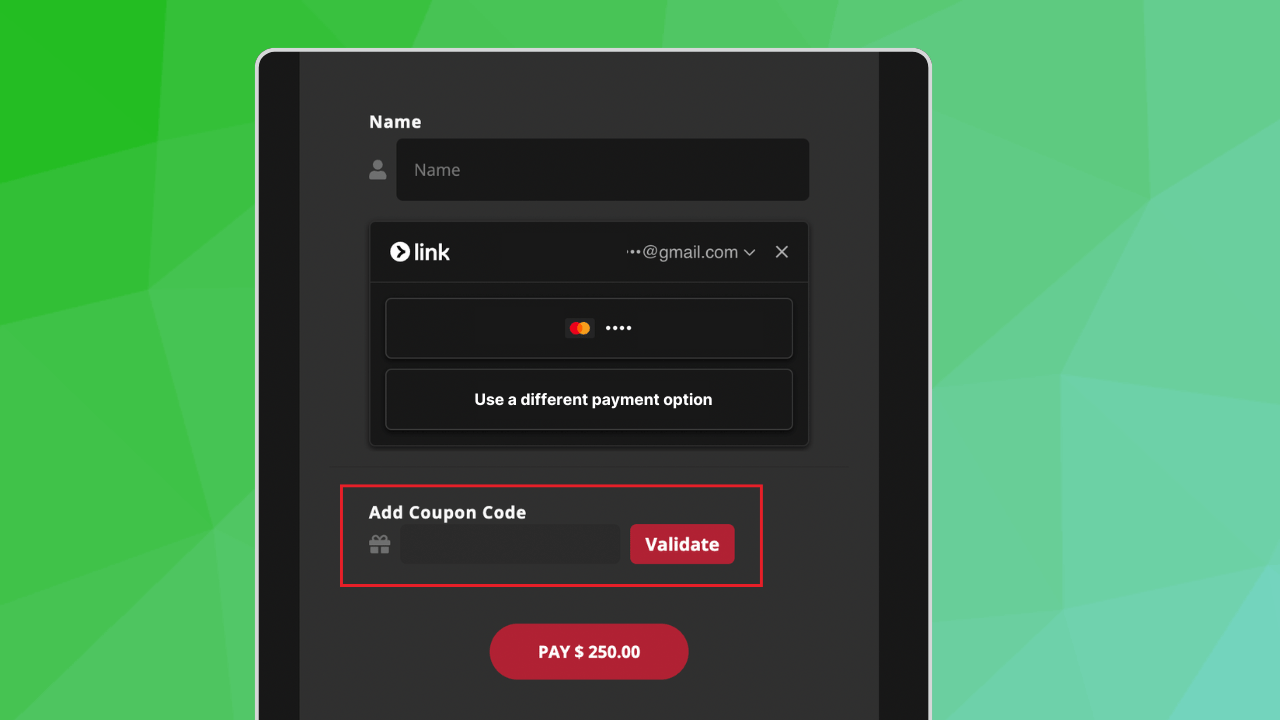
To test, go through your Storefront’s checkout page and put in a random email that is not associated with your account (You can literally type in anything as long as is in email format)
When you get to the billing screen, put in the coupon code and click "Validate"
Make sure that it takes the right amount of money in the total at the bottom.
There is no need to put your credit card number, you just have to validate the code.
If it works, you're good to go!
Failed payment emails
When a payment fails, Stripe automatically gives the customer a grace period—usually 14 days by default (you can adjust this in your Stripe settings). If a successful payment is made during this time, their subscription stays active.
If the payment still fails after the grace period, the customer will be locked out of the app and must resubscribe via your Storefront to regain access.
👉 Pro tip: You can set up automatic email reminders in Stripe to alert customers before and after a failed payment. This helps reduce churn and gives them a heads-up before losing access.
Configure the steps you’d like to take when charging a subscriber’s payment method fails:
Click on settings

Click on business
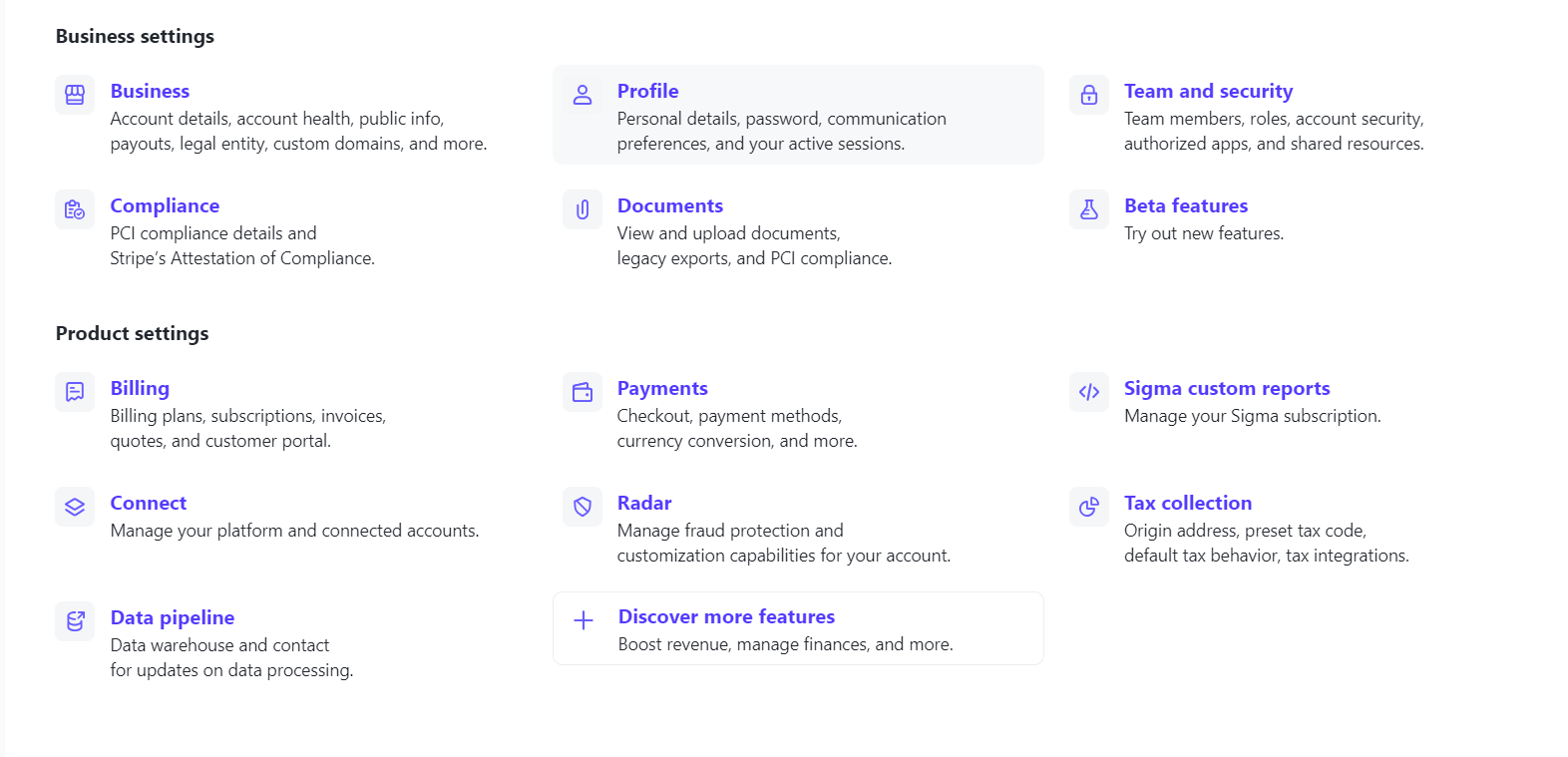
Click on customer emails

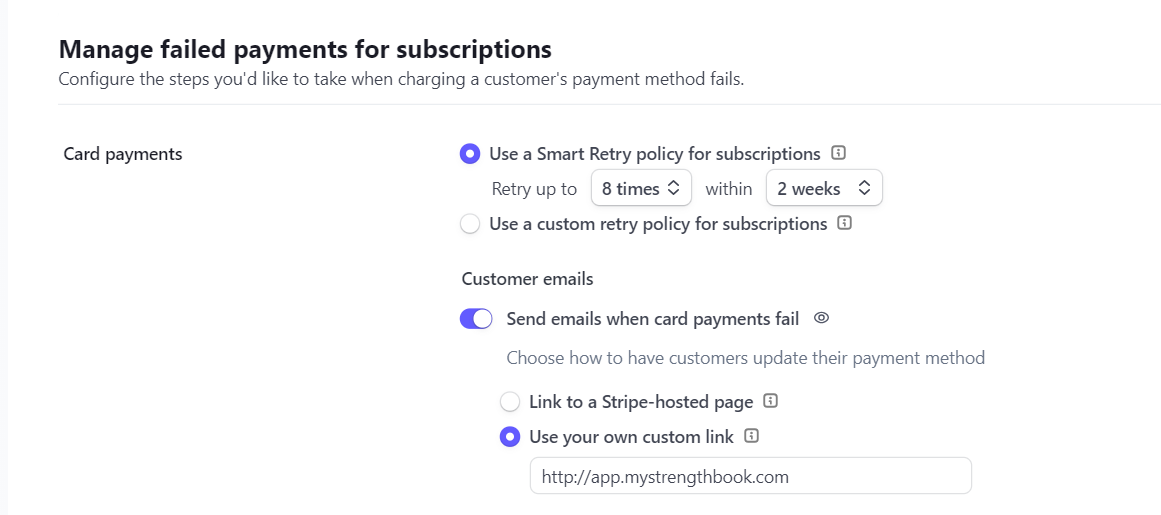
-Click on billing settings
-Scroll down, find the “manage failed payments for subscriptions
-Turn on the toggle for customer emails
-Select “Use your own custom link
-Add the link to your Storefront there
OPTION #2
Simply navigate to this link after logging into Stripe
https://dashboard.stripe.com/settings/billing/automatic
-Scroll down, and find the "Manage failed payments for subscriptions"
-Turn on the toggle for "Customer emails"
-Select "Use your own custom link"
-Add the link to your storefront here
Testing your account
If you want to create a Test account, please email us at Partnerships@mystrengthbook.com and we’ll show you how to do it
Coach welcome emails
When a new client subscribes, an automated welcome email is sent to download the app and get them started. You can also send an automated welcome email to provide more information on the app/programs. We need to set this up using Zapier.
Feel free to book a call after creating a free Zapier account. We can go through this together.
https://calendly.com/mystrengthbook/chat?month=2026-09
How to see real-time payments
If you want to get notified each time you get a new subscriber, just download the Stripe mobile app on your phone:
iOS: https://apps.apple.com/us/app/stripe-dashboard/id978516833
Android: https://play.google.com/store/apps/details?id=com.stripe.android.dashboard&hl=en_CA&gl=US
Sign in with your account and activate push notifications!
Offering a FREE trial
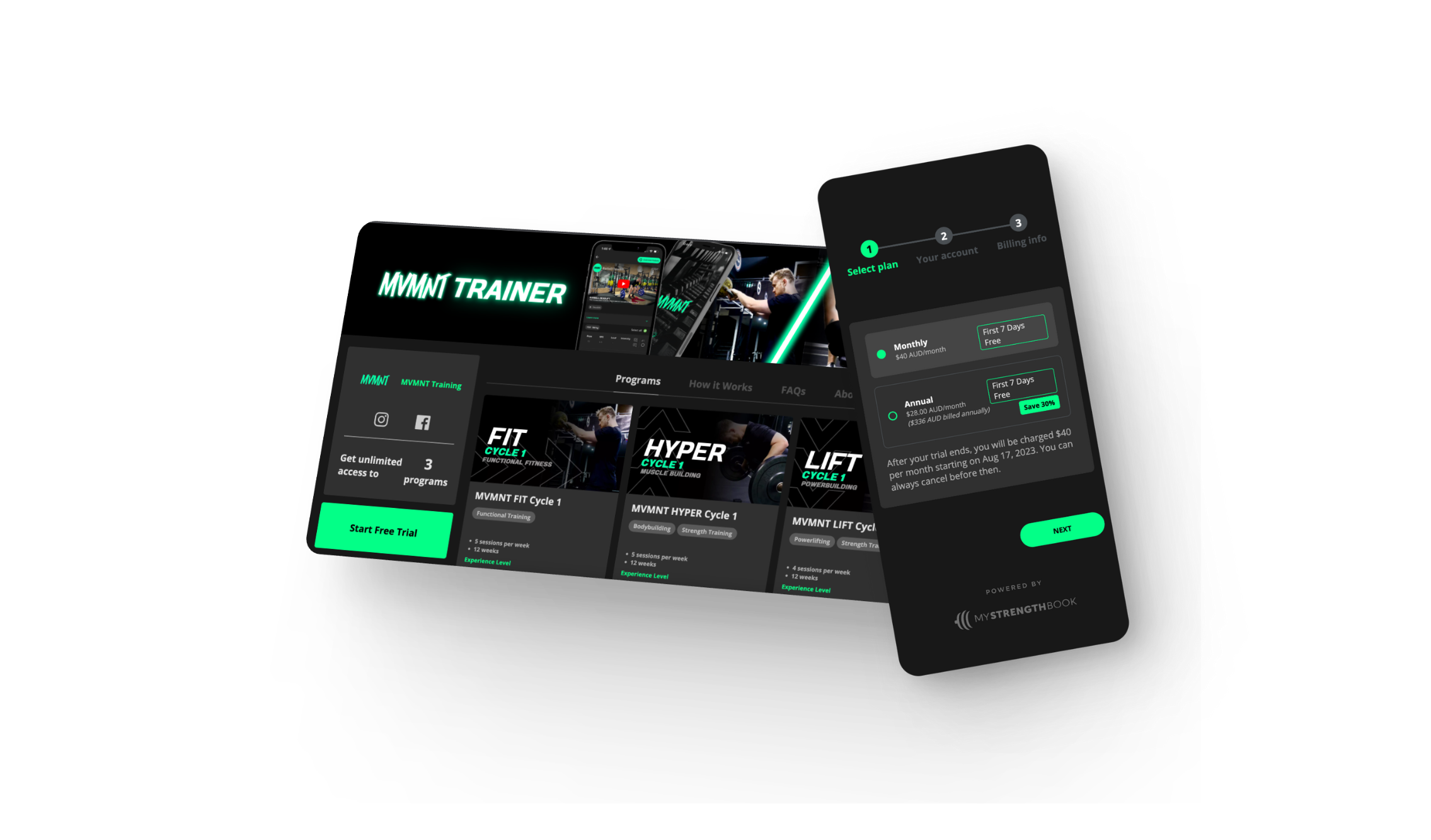
You now have the option to turn on a free trial for your PUSH app.
Features of the free trial include
The free trial can be any amount of days between 1 and 30
Make it permanent or temporary to run a limited-time free trial
You can turn a free trial on or off at any time
Each plan (monthly and annual) can have its own free trial length
Free trials are optional for both plans (monthly/annual)
Coupon codes can be combined with a free trial
A free trial can only be used one time per customer
When a free trial is on, it automatically applied to all new subscriptions
The checkout still collects your customer's payment information and we make it very clear oh how the trial works, how to cancel, and if/when they will be charged.
How it works for the subscriber
If a customer does not cancel their subscription before the trial ends, they will automatically be charged
If a customer sets their subscription to cancel before the free trial ends, they will not be charged and be locked out of the app after the trial ends
How to activate FREE TRIALS?
In order to activate free trials, just click on "Plan Manager" below the widgets section.
It will give you the option to set the number of days for the free trial as well as customize it for monthly and yearly subscriptions.
After you make the selection, hit publish!
FAQ’s
Q: Which email should I provide to get PUSH activated?
A: You should provide the email you used when you signed up for your coach account
Q: Is there a fortnightly subscription option?
A: Yes!
Q: I only use PUSH and on the top of my page still says that I have a free trial
A: No worries, the free trial isn't relevant for PUSH.
Q: Do you guys have any templates we could use to build our programs?
A: We don't offer this since we want to maintain some integrity on the platform.
Q: If I only use PUSH, do I still have access to the app features?
A: Yes, the mobile app widgets are for both PUSH and PULL
when you create a widget you have the ability to configure which type of user can see it
push or pull or both
Q: Which currency will be displayed on my Storefront?
A: You can choose the currency of your choice
Q: Does MyStrengthBook handle all the design work?
A: After you provide your logo, images, and brand colors/fonts, our team handles the following:
-Banner: We design your banner
-Mockups: We design all the phone mockups
-Program Thumbnails: You have to design your own program thumbnails. If you want us to design them for you, we charge $10 USD per thumbnail and you need to provide us with each program's details and desired images. Just let us know.
Q: How much would it be for me to do just the PUSH subscriptions?
A: The way PUSH works is a revenue share model. You get 80% of every sale and we keep 20%. You get the custom app and storefront + 24/7 tech support at no additional cost
Q: Can my URL name be changed in the future?
A: Yes. Just email us at partnerships@mystrengthbook.com
Q: What’s the best resolution to upload my videos?
A: Best resolution is 1080p
Q: Will I get a notification or an email when the design team is done with the training app? Or get updates as they are going?
A: Absolutely! You’ll get notified as soon as your storefront is ready!
Q: If I wanted to make revisions with the design team would I be able to do that as well?
A: Yes, you can request any changes to partnerships@mystrengthbook.com
Q: If I have a program up on the storefront that I don’t want to have published how do I delete it?
A: You can unpublish your programs in the "Store" section. You can refer to the “Building training programs “ section on this guide
Q: Do I need to pay for the custom icon and design or that would come free?
A: The app icon is free if you have 10 clients/users
Once you have 10 clients: Go to settings > branding and click on the “Request app icon”
Q: How would it look if I didn’t do the app icon right away?
A: MSB logo will be displayed
Q: What’s the cost for an app store listing?
A: It’s a $100 one-time setup, and $100 per year to Apple to be on the AppStore. You can refer to the ”App Store listing” section in this guide
Q: How long does a custom app store listing take?
A: A custom AppStore listing takes ~30 days
Q: How long for a custom app icon?
A: You can get a custom app icon in a few days, and a custom design immediately
Launching Your Subscription Programs with PUSH
Successfully launching your subscription program involves clear planning, strategic promotion, and engaging your audience.
This guide will walk you through each step to maximize your program’s impact and ensure a strong start.
1. Define Your Goals
Establish clear, measurable goals (e.g., 50 subscribers in the first month or $1,000 in revenue).
Use these goals to guide your strategies and evaluate your success.
Break down larger goals into smaller, achievable milestones to stay motivated.
2. Create a Compelling Offer
Offer something irresistible, like "$1 for the first month" or "7 days free."
Add value with bonuses, such as an exclusive meal plan or a free guide.
Use urgency to drive action (e.g., "Sign up in the next 48 hours to receive a 30-minute zoom call with me to discuss your goals).
3. Develop a Pre-Launch Timeline
4 Weeks Before Launch:
Tease your program with sneak peeks on social media.
Offer a free resource to grow your email list (e.g., "Download my free beginner’s fitness guide").
3 Weeks Before Launch:
Share behind-the-scenes content and unique program features.
Post testimonials or feedback from beta testers.
2 Weeks Before Launch:
Announce the official launch date to your email list and social media followers.
Highlight the benefits of signing up early.
1 Week Before Launch:
Build excitement with Instagram Story countdowns and exclusive offers for early subscribers.
Day Before Launch:
Share a final teaser and ensure all technical details (e.g., links, coupon codes) are ready in PUSH.
Contact Partnerships@mystrengthbook.com to get help creating coupon codes or free trials
Part 2: PROMOTE YOUR LAUNCH
1. Build Anticipation
Post countdowns on Instagram Stories and share teaser videos.
Use posts like, "Guess what’s coming?" or "Big news dropping soon—stay tuned!"
Create intrigue with polls or Q&A sessions (e.g., "What’s the #1 fitness goal you want to crush this year?").
2. Leverage Your Newsletter
Share valuable content leading up to the launch (e.g., tips, success stories, or exclusive fitness insights).
Send targeted emails:
"Mark your calendars—something big is coming on [date]!"
"Here’s a sneak peek at what you’ll get with [Program Name]."
3. Host a Launch Event
Consider doing an Instagram live or Q&A session:
"Be the first to hear about [Program Name]."
"Get all your questions answered in my live Q&A—plus a special bonus for attendees!"
4. Share Social Proof
Post testimonials from beta testers or previous clients.
Share before-and-after results or quotes like, "This program completely changed my routine—highly recommend!"
5. Use Limited-Time Incentives
Offer bonuses or discounts to create urgency:
"First 20 sign-ups get an exclusive 30-day meal plan."
"Sign up before [date] and save 20%."
Part 3: POST-LAUNCH ENGAGEMENT
1. Monitor Feedback
Engage with new subscribers to gather feedback on their experience.
Use surveys or polls to understand what’s working and identify areas for improvement.
2. Maintain Communication
Send follow-up emails with tips, success stories, or program highlights to keep subscribers engaged.
Example email: "Week 1 Check-In: Here’s how to maximize your results."
3. Evaluate and Adjust
Review your launch metrics to see what worked well (e.g., conversion rates, and subscriber numbers).
Use insights to refine your strategy for future launches.
Promoting your new app
This is a general overview of promoting your app on social media.
If you want an in-depth strategy, we recommend you download our free resource: Make a full-time income online as a fitness coach
Click here: Make a full-time income online as a fitness coach
You decided to go online, but that raised many other questions.
You feel like everything is changing, but trust us – it’s for the better.
With your own app, you will have clients from all over the world and not just your local surroundings.
How should I promote it, you ask?
Well, it is similar to what you did when you were working offline. Still, there are some additions you need to know about and take into consideration.
Read on to find out what are all the aspects of promoting your fitness app and how to do it:
🎯Define your target audience
To promote your app successfully, you need to know who your target audience is.
You need to define the ideal client profile – define the attributes of people who would benefit the most from the exercise program you provide.
Define:
Problems that your fitness program is solving
What is your client’s location – offline and online?
What social media do they use?
How old are they?
What is their gender?
Think about additional questions that are specific to your app and try to answer them.
When you have all the answers you need, then you’ll know how and where to promote it.
Still, there are a few general tips that you shouldn’t avoid when promoting your programs:
Content strategy – share your knowledge to gain trust
The content you create for your app ( workout videos, meal plans, etc) is not enough to attract new clients.
You need to make a content strategy that will offer valuable content to your clients and potential new clients.
The fitness content strategy includes:
Blog posts
Newsletter
Tutorials
How-to videos
Social media posts
Every type of content needs to offer helpful information or some interesting facts, so your users understand your brand and feel more comfortable with giving you their trust.
Remember what your clients often asked you when you were working in person and start with answering those questions.
Have in mind they won’t sign up for your newsletter, read your blog posts or social media posts if you don’t offer them some solution to their questions and issues.
Another part of your content marketing is user-generated content. Allow your users to share their successful fitness stories and share their experiences.
Ask your users to tag you when they share their fitness progress and create a hashtag for your brand. That way, you’ll be able to find user-generated content even if someone forgets to tag you.
In conclusion
When transferring to an online fitness program, you’ll need to learn more about how to promote your app, find new users, convert them to use your programs, and then retain them.
Applying these tips is a good starting point!
Refer-a-Friend Feature Guide
The Refer-a-Friendfeature lets your subscribers earn free time on their subscription by inviting friends to join your app. It’s a fully automated growth tool that drives new subscribers while keeping your current ones engaged—no tracking or manual work required from you.
Why It’s Powerful
🚀 Passive subscriber growth – your app spreads through word of mouth.
🔁 Improved retention – subscribers have a reason to stick around longer.
💸 Zero admin work – we track everything automatically.
📈 Built-in virality – every subscriber becomes a growth channel.
What Subscribers Get
Your subscribers earn free time on their current plan when their friends become paying users.
Here’s the breakdown based on their subscription plan:
Weekly plan → 3 referrals = 3 weeks free
Monthly plan → 3 referrals = 1 month free
Quarterly plan → 6 referrals = 3 months free
Annual plan → 10 referrals = 1 full year free
How Clients Access It (In the App)
Step-by-step:
Open the app
Tap the profile icon (top right corner)
Select “Refer a Friend”
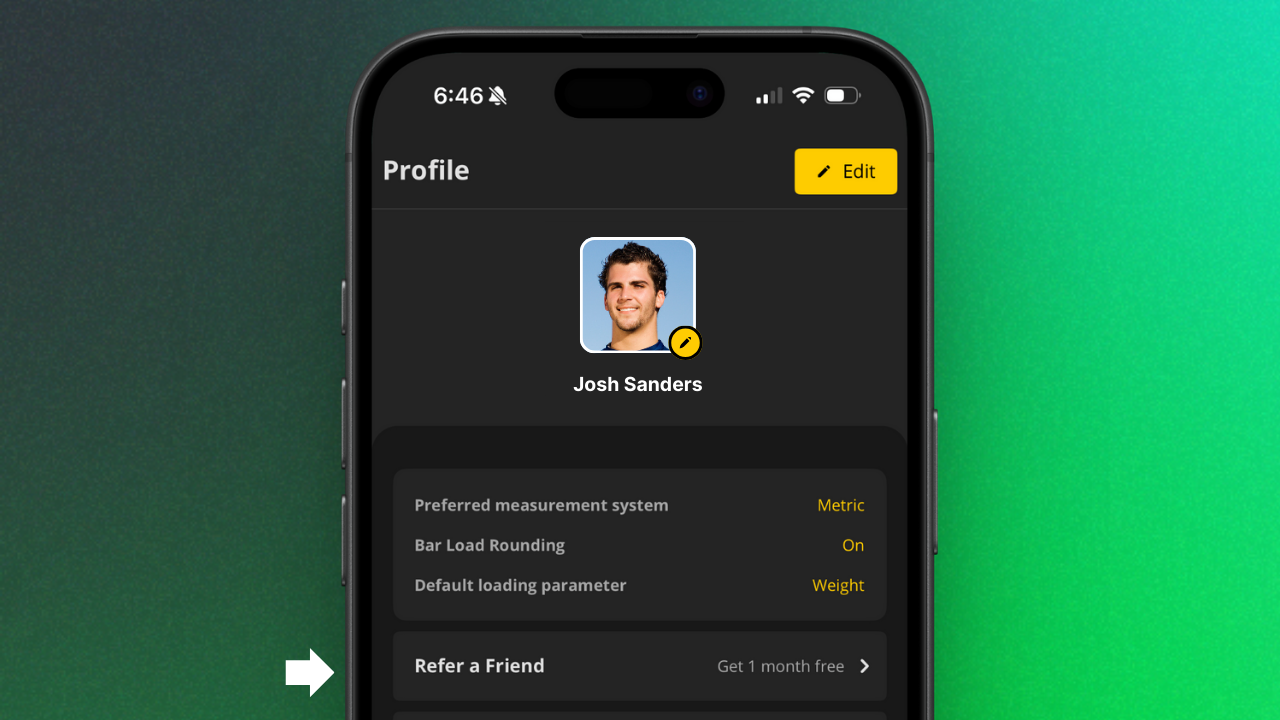
Inside, they’ll see:
A referral progress tracker (steps 1, 2, 3)
Clear “How it works” instructions
A “Send Referral Link” button
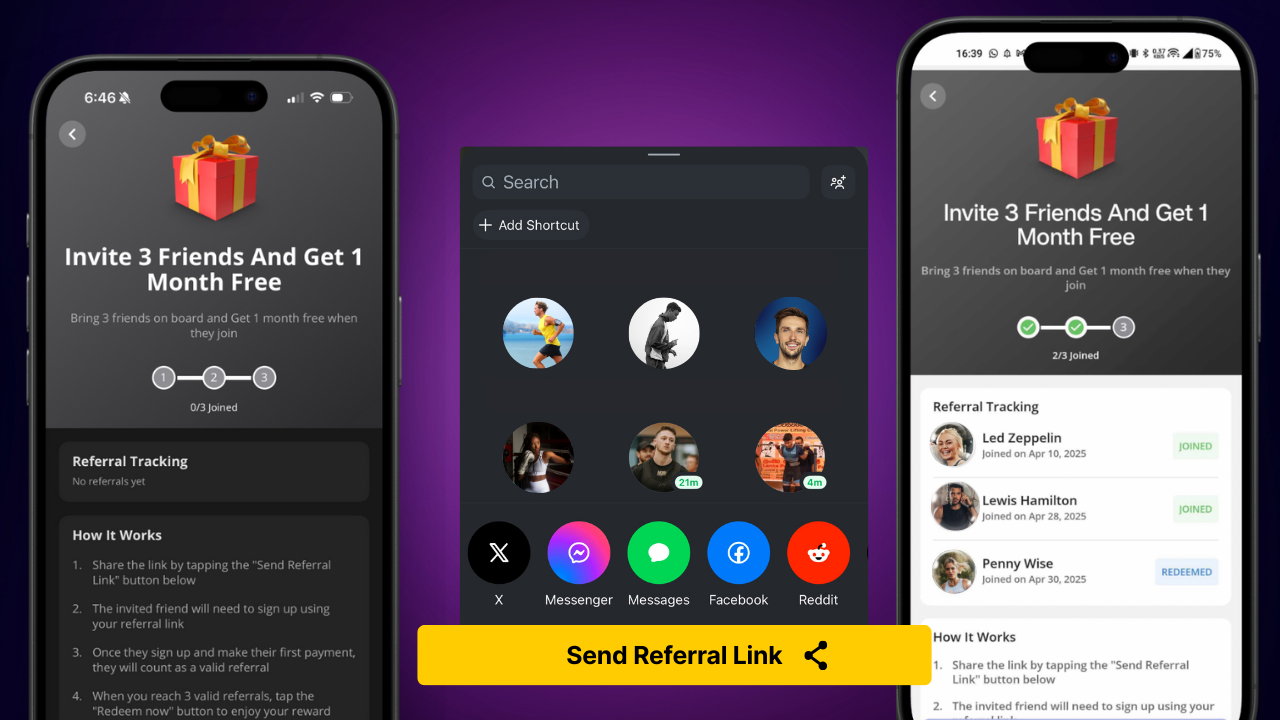
What Clients Will See: "How It Works"
Share the link by tapping the “Send Referral Link” button
The invited friend must sign up using that link
Once the friend pays for their subscription, the referral becomes valid
When they hit the required number of valid referrals, they can tap “Redeem Now” to claim their reward
💡 The reward they unlock is based on their own current subscription plan.
Support
Contact us
If you have any questions or want to share any feedback, feel free to email us at:


No email required
More from the blog

Your coaching deserves a smarter engine
Program, track, and analyze every client across training, nutrition, lifestyle, and education. Less admin, more coaching
Explore PULL ›