
Getting started with community chat
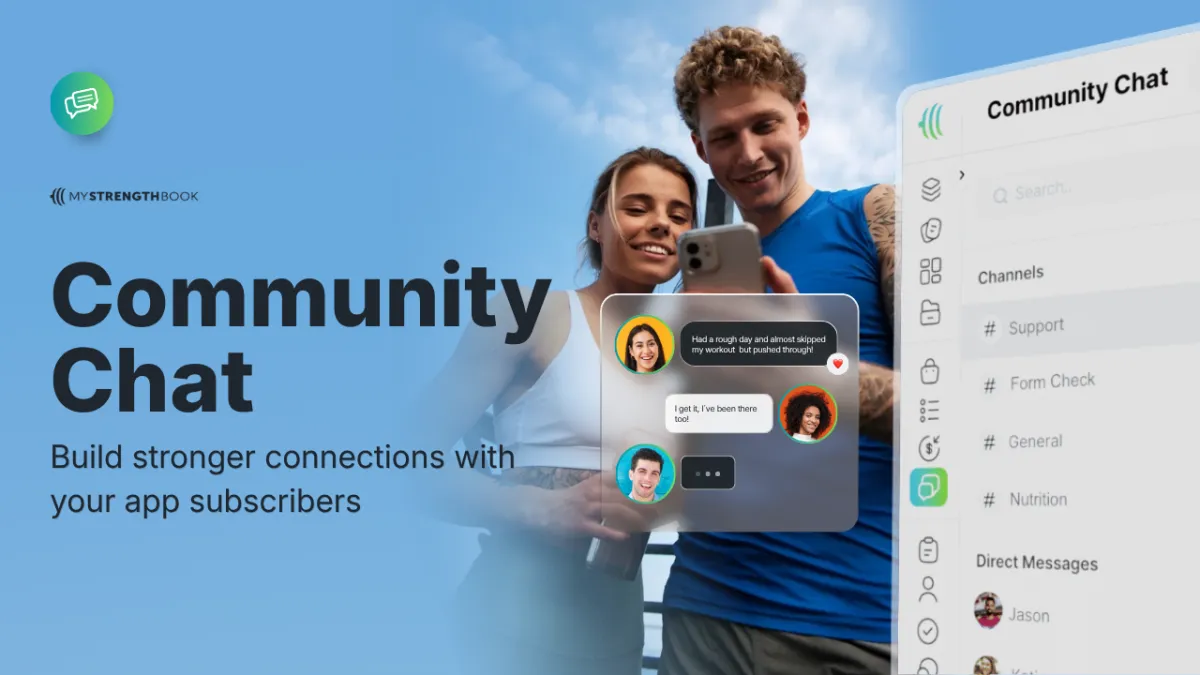
Build stronger connections with your app subscribers and create an engaging environment where clients feel motivated and supported. The Community Chat feature helps you streamline communication, foster accountability, and inspire your clients—all within your app.
Why Community Chat?
❤️ Strengthen Engagement: Create a space where your clients connect, share progress, and support one another.
🤝 Foster Accountability: Daily conversations and challenges encourage clients to stay consistent in their fitness journeys.
💬 Simplify Communication: Consolidate all interactions, updates, and shared files in one convenient place.
How to Activate Community Chat
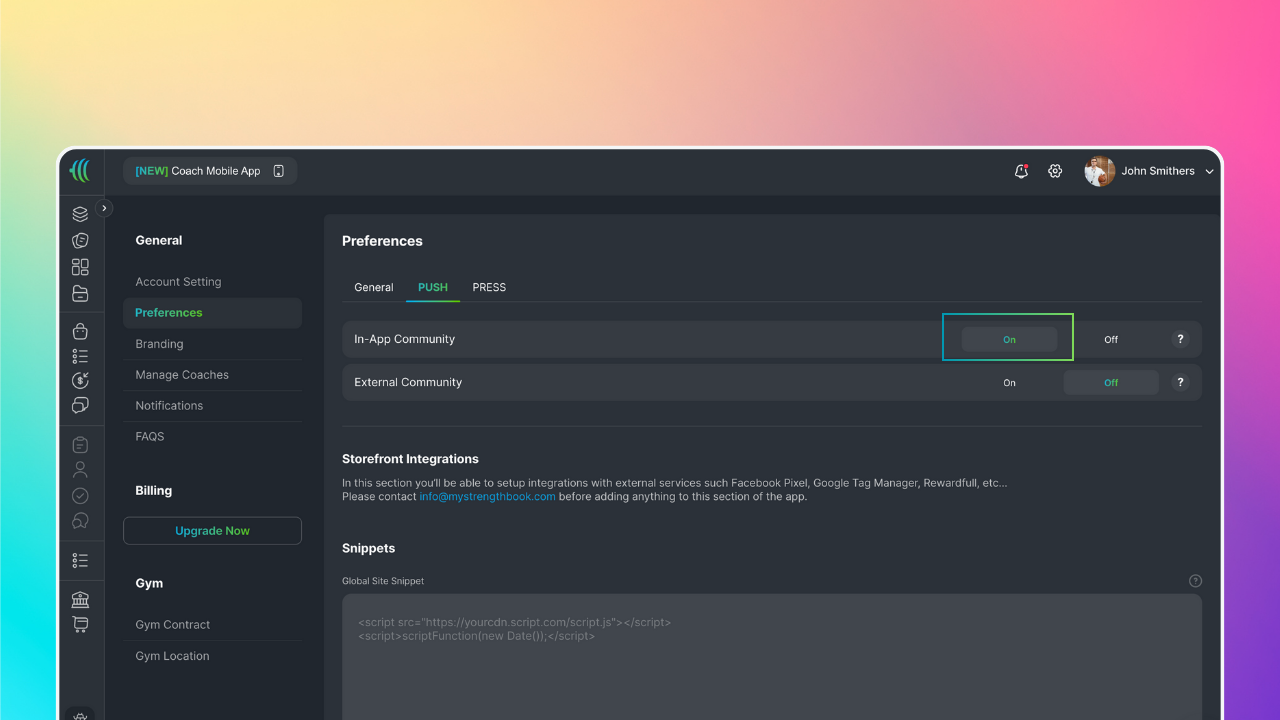
Go to Settings in your main dashboard.
Under Preferences select the PUSH tab.
Toggle In-App Community to “ON”
What Are Channels?
Channels are topic-specific group chats that keep conversations organized and relevant. Coaches can create multiple channels based on their clients’ needs.
Example Use Cases:
#️⃣ Progress Updates: A channel dedicated to sharing progress photos and feedback.
#️⃣ Form Checks: Help clients improve by reviewing their training videos.
#️⃣ Challenges: Host fitness challenges and keep track of participants' progress.
#️⃣ Announcements: Share important updates, new programs, or events.
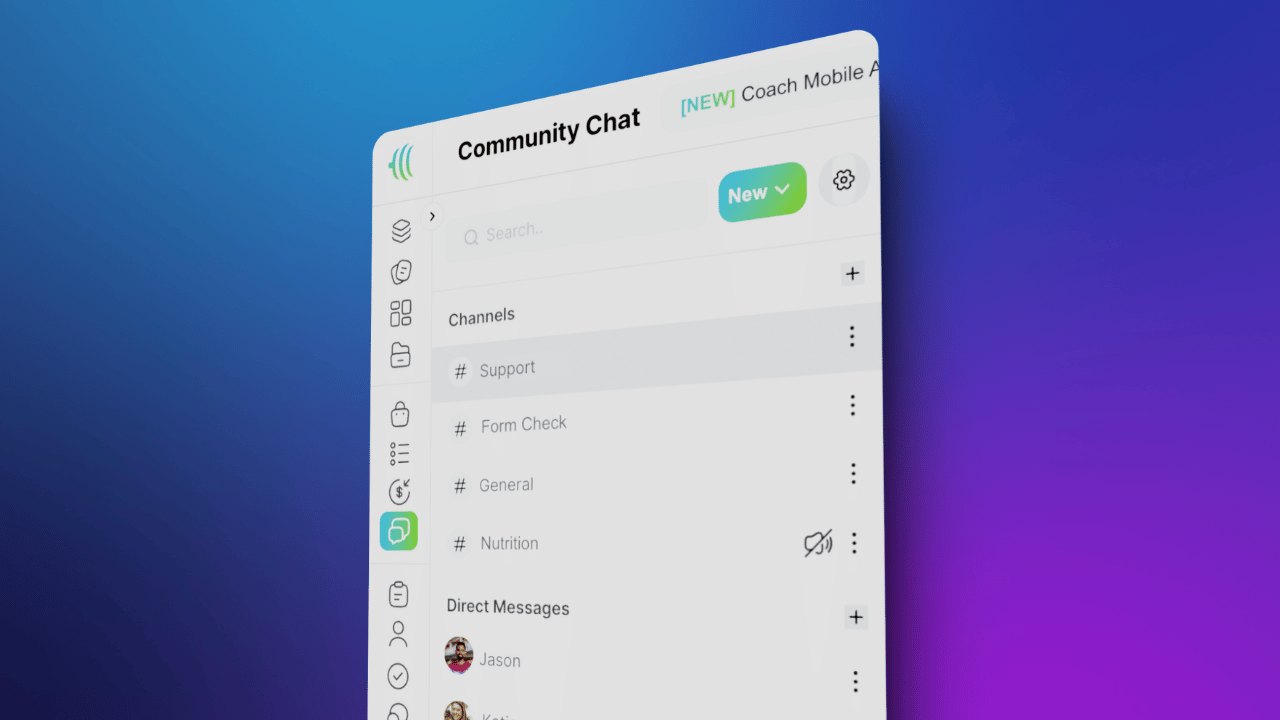
How to Create a Channel
Navigate to Community Chat in your dashboard
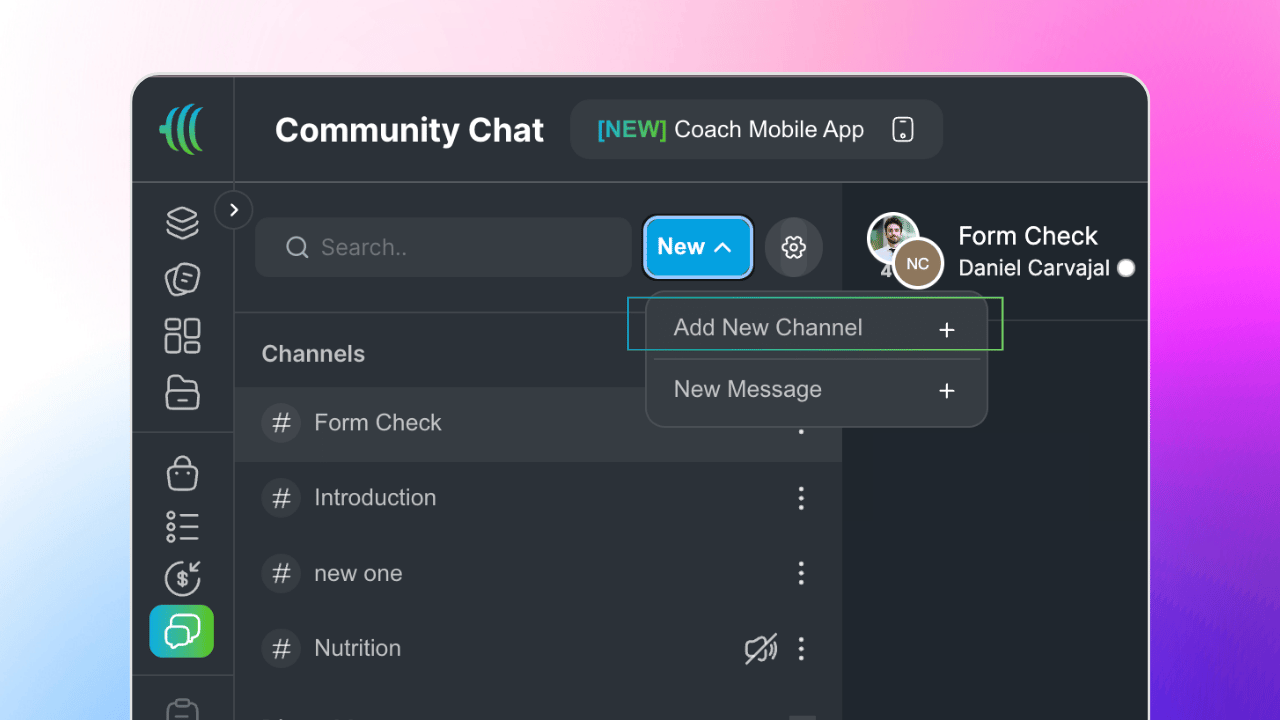
Tap +New and then select Add New Channel
Name your channel and customize its purpose.
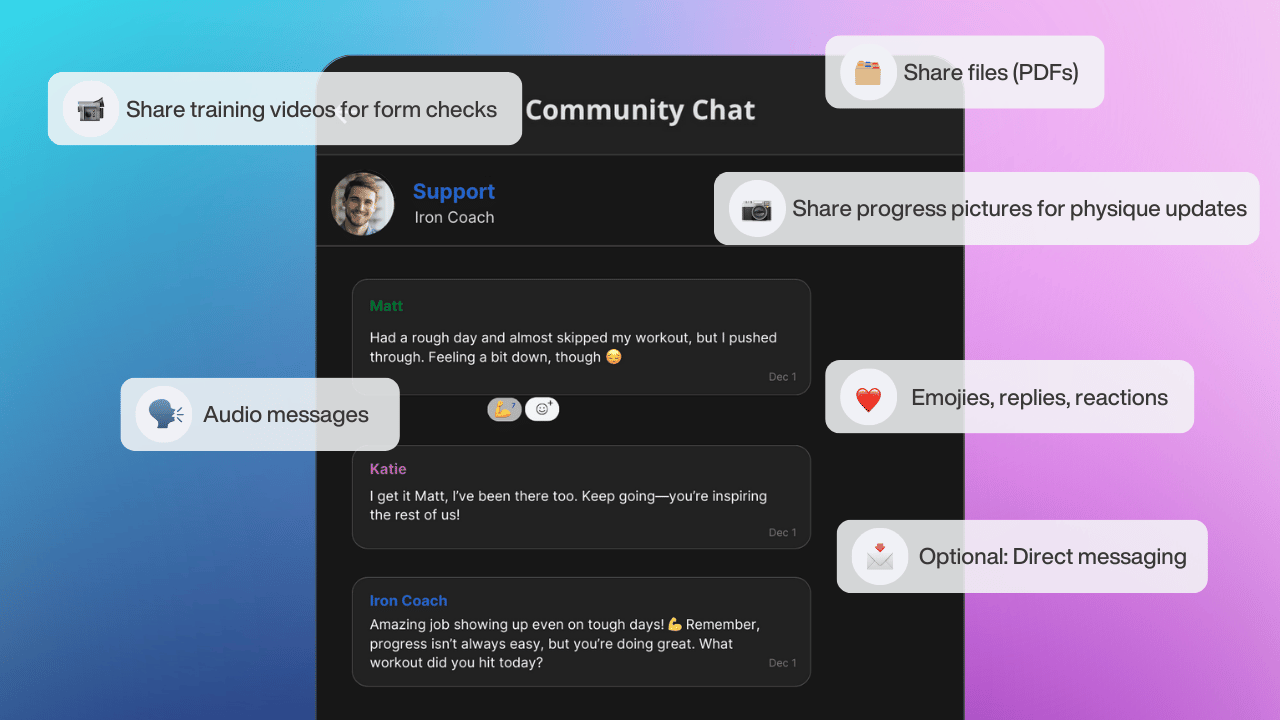
Community Chat Features
📸 Media Sharing: Share training videos, progress photos, and files (e.g., PDFs).
🗣 Audio Messages: Record and share audio updates or feedback.
❤️ Reactions & Replies: Use emojis and threaded replies to engage in conversations.
🔔 Push Notifications: Ensure clients never miss important updates.
Admin Access
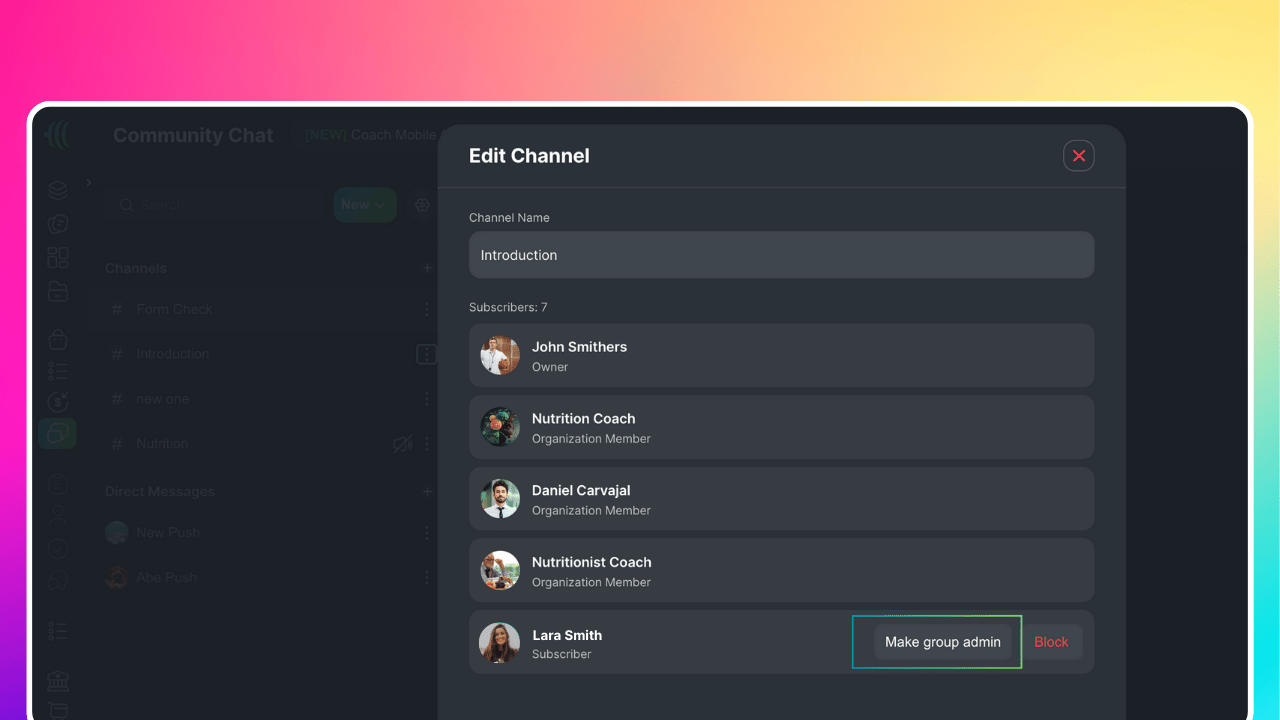
As the coach (admin), you have full control over the channels:
Assign other admins for better management.
Go to the channel, tap 3 dots, select Edit Channel, and Make Group Admin
Guest Access
All new subscribers will automatically gain access to existing channels.
Coaches can block or unblock members.
Navigate to the channel, click 3 dots, choose Edit Channel, find the member, and select Block.
Muting Push Notifications
Clients or coaches can mute notifications for specific channels:
Go to the channel.
Tap the 3 dots.
Select 🔕 Mute Channel
Optional: Direct Messaging
Direct messaging is available for one-on-one communication between coaches and subscribers.
📥 If you have any questions you can email us at info@mystrengthbook.com


No email required
More from the blog

Your coaching deserves a smarter engine
Program, track, and analyze every client across training, nutrition, lifestyle, and education. Less admin, more coaching
Explore PULL ›